Windows Toolbar
The windows toolbar control allows users to manage how Map View windows are displayed in the main application window.
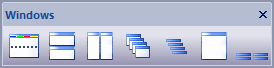
The toolbar buttons are:
- Use Tabs
When this button is selected the Map View windows are organized using a tabbed window layout in the main application window. When this button is unselected the Map View windows are organized as free floating windows in the main application window.

- Tile Windows Horizontal
When this button is selected the Map View windows are tiled horizontally in the main application window.

- Tile Windows Vertical
When this button is selected the Map View windows are tiled vertically in the main application window.
- Cascade Windows
When this button is selected the Map View windows are cascaded as overlapping windows in the main application window.
- Arrange Icons
When this button is selected the Map View window icons are arranged in the main application window. This option only applies to Map View windows that are in the minimized state.
- Maximize Windows
When this button is selected all Map View windows are maximized within the main application window.
- Minimize Windows
When this button is selected all Map View windows are minimized within the main application window.
Documentation is published by LCIC with the Axis release and imported here in full. Screenshots and wording are the vendor's own.