Launch Personal Map Server
There are several ways to connect to Personal Map Server using the Map Publisher Desktop application.
Using The Desktop Icon
If the option to place a desktop icon on the Desktop was selected during the installation of Personal Map Server you can double click the icon to launch the application. The icon is shown below:
Using The Start Menu
If the option to place a shortcut in the Start Menu was selected during the installation of Personal Map Server you can select the menu option to launch the application. The steps are as follows:
- Click the Start menu icon on the bottom left of your screen in the task bar.
- Click the folder named "AGSI ".
- Click the option named "Map Publisher Personal Map Server <version> ".
- After the application starts click the "Start " button on the Toolbar or from the Menu if the server is not already started.
- Inspect the Log Entry List and / or the Status Bar and make sure the server started successfully.
- If the server started successfully then you are finished. When you close the application window the service will be shutdown.
Using Map Publisher Desktop
Users can launch Personal Map Server directly from the Map Publisher Desktop application using the following options:
- Using the "Map" toolbar select the button named "Map Server " as shown below.
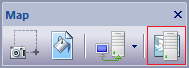
- Using the Menu Bar "Map" popup menu select the option named "Map Server... " as shown below.
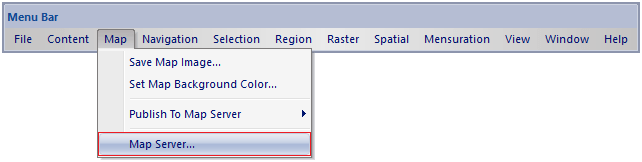
For a more detailed explanation use Personal Map Server using Map Publisher Desktop please see the help documentation for Map Publisher Desktop that is accesible via the Map Publisher Desktop application using the Help menu or F1.
Documentation is published by LCIC with the Axis release and imported here in full. Screenshots and wording are the vendor's own.