Tasks Pane
The tasks pane docking window allows users to monitor tasks that have been submitted to the Parallel Processing Server for execution.
Overview
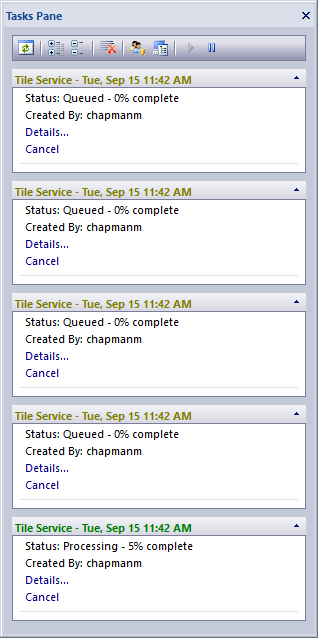
The tasks pane docking window allows users to view tasks that they or others have submitted to the Parallel Processing Server for execution. Tasks are intially submitted in a Queued state where a first-in first-out (FIFO) queuing service controls the orderly execution of each job. As tasks transition from Queued to Processing to Completed, the task panel text color changes to reflect the current Status of each task. Tasks panels show a brief text description for each task, a percent complete and links to view task details, time elapsed, log messages, or cancel / delete a task. The task panel toolbar at the top of the pane provides options to refresh the list, expand and collapse the list, remove completed tasks, view personal and team related tasks, change the task server URL end point, and pause and run the Parallel Processing Server. To learn more about the popup windows associated with Task Pane window see Task Dialogs .
Dialogs
Toolbar
- Refresh
Refreshes the task list control to reflect any changes in the parallel processing server.
- Expand All
Expands all panels of the task list.

- Collapse All
Collapses all panels of the task list.

- Remove All Completed Tasks
Removes all tasks that are completed or canceled from the list and from the Parallel Processing Server.
- Show Tasks From All Users
When this button is toggled on the task window will show all tasks from all users. When toggled off only your personal tasks will be shown in the list.
- Configure Task Server
Launches the Task Server configuration dialog window.
- Run Task Server
When this button is toggled on the Parallel Processing Server will be in a running state and will execute tasks.

- Pause Task Server
When this button is toggled on the Parallel Processing Server will be in a paused state and will not execute tasks.
Docking Window
Dockable panes are special windows that can either be docked in a dock site or included in a tabbed pane. The main difference with a view is that a view is built to display the main application content while a pane provides context relative content to what the view has. When a pane is docked in a tabbed pane, click and drag the tab title to rip it from the tabbed view. Drop the cursor on the docking targets that appear when dragging to dock in a new location. Use the "Pin" menu icon in the title bar of the pane window to auto show / hide the pane when not in use. Use the Main Menu, Map Menu or Panes Toolbar to show or hide the application docking windows.
Documentation is published by LCIC with the Axis release and imported here in full. Screenshots and wording are the vendor's own.