Library Page
The product settings library page dialog window allows the user to set default values when adding new catalog datasets to the library.
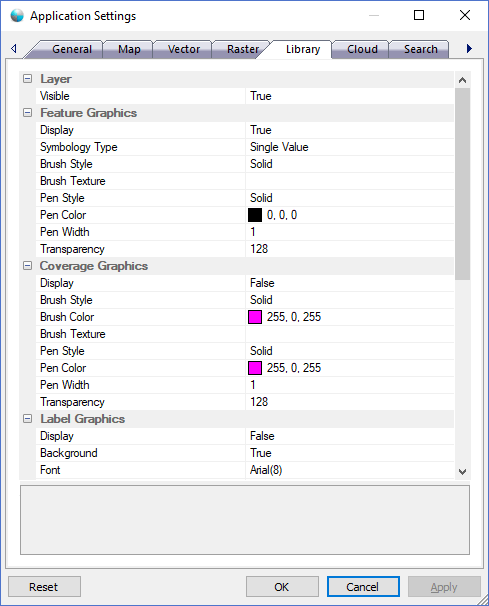
The dialog controls are:
Layer
- Visible
Default value. Show or hides the data source default setting. Use the Display style options to show or hide different style aspects of the data source.
Feature Graphics
- Display
Default value. If true, the features of the layer will be displayed as a graphics. - Symbology Type
Default value. The symbology type used to brush the feature graphics. - Brush Style
Default value. The brush pattern used to display the feature graphics. - Brush Texture
Default value. An image file that is used to brush the feature graphics. - Pen Style
Default value. The pen pattern used to display the feature graphics. - Pen Color
Default value. The pen color of the feature graphics. - Pen Width
Default value. The feature graphics pen width. - Transparency
Default value. The transparency of the feature graphics. The range is 0 to 255 where 0 is completely transparent and 255 is completely opaque.
Coverage Graphics
- Display
Default value. If true, the coverage area of the layer will be displayed as a graphic. - Brush Style
Default value. The brush pattern used to display the coverage graphic. - Brush Color
Default value. The brush color of the coverage graphic. - Brush Texture
Default value. An image file that is used to brush the coverage graphic. - Pen Style
Default value. The pen pattern used to display the coverage graphic. - Pen Color
Default value. The pen color of the coverage graphic. - Pen Width
Default value. The coverage graphic pen width. - Transparency
Default value. The transparency of the coverage graphic. The range is 0 to 255 where 0 is completely transparent and 255 is completely opaque.
Label Graphics
- Display
Default value. If true, a label for each of the layer features will be displayed as a graphic. - Background
Default value. If true, a background graphic will be displayed behind the label text. - Font
Default value. The font characteristics for the label text. - Italic
Default value. If true, the label text will be italic or slanted. - Underline
Default value. If true, the label text will be underlined. - Strikeout
Default value. If true, the label text will have a line through the middle. - Text Color
Default value. The text color of the label. - Brush Style
Default value. The brush pattern used to display the background graphic. - Brush Color
Default value. The label graphic brush color. - Brush Texture
Default value. An image file that is used to brush the background graphic. - Pen Style
Default value. The pen pattern used to display the background graphic. - Pen Color
Default value. The pen color of the background graphic. - Pen Width
Default value. The background pen width. - Transparency
Default value. The transparency of the label graphics. The range is 0 to 255 where 0 is completely transparent and 255 is completely opaque.
Selection Graphics
- Display
Default value. If true, a selection graphic will be displayed for each of the selected features in the layer when using the selection tool. - Brush Style
Default value. The brush pattern used to display the selection graphics. - Brush Color
Default value. The brush color of the selection graphics. - Brush Texture
Default value. An image file that is used to brush the selection graphics. - Pen Style
Default value. The pen pattern used to display the selection graphics. - Pen Color
Default value. The pen color of the selection graphics. - Pen Width
Default value. The selection graphics pen width. - Transparency
Default value. The transparency of the selection graphics. The range is 0 to 255 where 0 is completely transparent and 255 is completely opaque.
Buttons
- Reset
When this button is clicked the dialog resets all properties on the current page to the original values that were present after product installation. - OK
When this button is clicked all properties on the dialog pages are saved and the dialog window is closed. - Cancel
Closes the dialog window. - Apply
When this button is clicked all properties on the dialog pages are saved but the dialog window is not closed.
Documentation is published by LCIC with the Axis release and imported here in full. Screenshots and wording are the vendor's own.