Information Pane
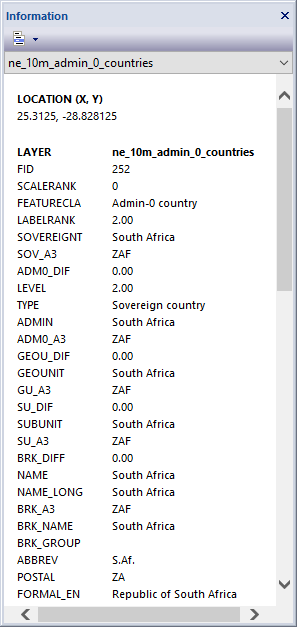
Overview
The information pane docking window allows users to left click on a geometry or pixel in the map and view the attribute data associated with the intersecting point. Use the "Feature Information" command button on the Navigation Toolbar to place the map cursor in feature information mode. Once in feature information mode use the mouse pointer to left click a point in the map to get the feature information for one or more intersecting layers. View feature information for vector, raster, elevation, OGC WMS, OGC WMTS and XYZ service layers. Use the "Information Filter" command button on the Information Pane toolbar to filter the information results.
Dropdown
- Layers dropdown list box displays a list of layers returned from the feature information query. The layers returned varies depending on the information filter. Use the Information Filter Menu to change the information filter.

Menus
Toolbar
- Information Filter
Filters the feature information results in the pane window by all layers, only selected layers, the topmost layer or visible layers.
Docking Window
Dockable panes are special windows that can either be docked in a dock site or included in a tabbed pane. The main difference with a view is that a view is built to display the main application content while a pane provides context relative content to what the view has. When a pane is docked in a tabbed pane, click and drag the tab title to rip it from the tabbed view. Drop the cursor on the docking targets that appear when dragging to dock in a new location. Use the "Pin" menu icon in the title bar of the pane window to auto show / hide the pane when not in use. Use the Main Menu, Map Menu or Panes Toolbar to show or hide the application docking windows.
Documentation is published by LCIC with the Axis release and imported here in full. Screenshots and wording are the vendor's own.