Mensuration Pane
The mensuration pane docking window allows users to view measurement values captured in the map window.
Overview
The mensuration pane docking window allows users to view area and perimeter measurements in International and US Survey units. Measurements can be captured from planimetric and geodesic paths using the Mensuration Toolbar controls. For an example of a map measurement see the Map View screenshots.
Menus
Toolbar
- Area Units
A droplist that allows the user to select the display units for area computations. See Mensuration Area Menu for more information.
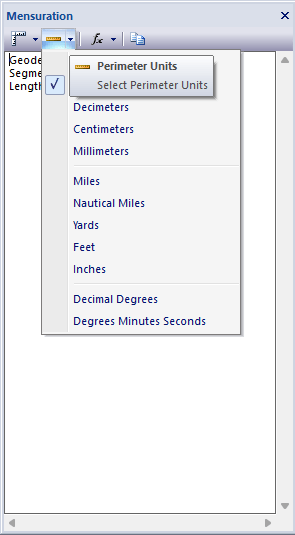
- Perimeter Units
A droplist that allows the user to select the display units for perimeter computations. See Mensuration Perimeter Menu for more information.
- Measurement Standard
A droplist that allows the user to select the measurement standard for computations. See Mensuration Standard Menu for more information.
- Copy Measurement
Copies the text contents of the Mensuration Pane window to the clipboard.
Docking Window
Dockable panes are special windows that can either be docked in a dock site or included in a tabbed pane. The main difference with a view is that a view is built to display the main application content while a pane provides context relative content to what the view has. When a pane is docked in a tabbed pane, click and drag the tab title to rip it from the tabbed view. Drop the cursor on the docking targets that appear when dragging to dock in a new location. Use the "Pin" menu icon in the title bar of the pane window to auto show / hide the pane when not in use. Use the Main Menu, Map Menu or Panes Toolbar to show or hide the application docking windows.
Documentation is published by LCIC with the Axis release and imported here in full. Screenshots and wording are the vendor's own.