Service Account Dialog
The cloud service account dialog window connects to a cloud storage service using the information provided in the dialog window.
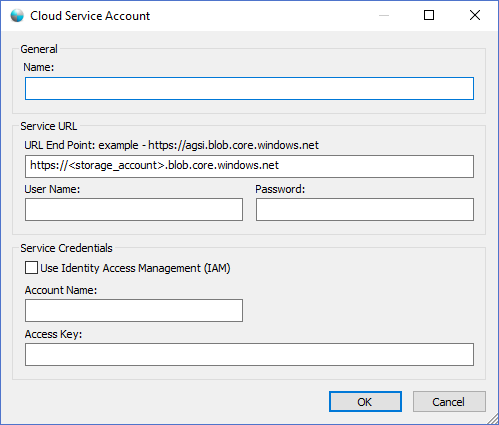
The dialog controls are:
- Name
A user defined friendly name for the cloud service account when displayed in the Cloud Pane Tree Control. This value can be whatever the user desires and is a required field. - URL End Point
The url for the cloud storage service as specified by the service provider documentation. The URL End Point example text will display the most common URL for the service provider selected from the Cloud Pane Tree Control. For example, the Azure File Service is https://<account_name>.file.core.windows.net, Azure Blob Service is https://<account_name>.blob.core.windows.net and Amazon S3 is https://s3.amazonaws.com.
Note: The placeholder <account_name> should be replaced with the service account name provided by the service provider when users sign up for an account. - User Name
The User Name for the URL End Point if required by the server. This is NOT the account name or access key id for the service account. This is the user name for a URL End Point that requires additional authentication and is typically an NTLM user name. Your service provider should supply the additional credentials if required. For most URL End Points this field is not required and is left blank. - Password
The Password for the URL End Point if required by the server. This is NOT the access key or secret access key id for the service account. This is the password for a URL End Point that requires additional authentication and is typically an NTLM password. Your service provider should supply the additional credentials if required. For most URL End Points this field is not required and is left blank. - Use Identity Access Management (IAM)
Check this option if your URL End Point requires service authentication using Identity Access Management (IAM). IAM is an enterprise-grade identity management system, federation and single sign-on service that large organizations will typically use in order to gain more control over user authentication. When this option is selected the Account Name (For S3 - Access Key Id) and the Access Key (For S3 - Secret Access Key Id) are not required and do not need to be provided. The application will automatically request credentials for the service from the service providers IAM service. If your organization uses IAM your system administrator will configure your machine to comply with the service providers IAM service. If you are having trouble using this option please contact your system administrator and ensure that your machine is properly configured to use IAM for the service provider you are trying to connect to. - Account Name (For S3 - Access Key Id)
The account name for the cloud storage service account. Users should be supplied this value by the cloud service provider when they sign up for an account. - Access Key (For S3 - Secret Access Key Id)
The access key for the cloud storage service account. Users should be supplied this value by the cloud service provider when they sign up for an account. - Region
The region for the cloud storage service account. Users should be supplied this value by the cloud service provider when they sign up for an account. - OK
When this button is clicked the application will attempt to connect to the URL End Point provided and connect to the cloud storage service account. If an error occurs a message box will be displayed to alert the user of the problem. If successful the dialog will close and a new service node will be added to the Cloud Pane Tree Control using the value supplied in the Name text box. The application will also attempt to query the directories in the root of the account using the forward slash "/" as the directory path delimeter. Users can use the Cloud Pane Tree Control right-click popup menus to work with the cloud storage service. - Cancel
Closes the Cloud Service Account Dialog.
Note: Users can configure the Application Settings dialog window Cloud tab with default credentials for cloud services that they connect to frequently. When default credentials are saved with the application settings the Cloud Service Account dialog window will automatically populate the dialog controls to simplify re-connecting to the service account. Services that are added to the Cloud Pane Tree Control will persist their settings between sessions so the user does not need to reconnect to the service each time the application is restarted.
Documentation is published by LCIC with the Axis release and imported here in full. Screenshots and wording are the vendor's own.