Connect To Personal Map Server
There are several ways to connect to the Personal Map Server mapping services using the Map Publisher Desktop application. Follow the steps below for each of the services.
Note: Please make sure the Server is started and the service you want to connect to was installed during the Map Publisher Professional installation process.
Connect To The KML Service
Map Publisher Desktop does not support reading KML files. The KML service is intended for Google Earth and Google Map clients. The address of the KML service is as follows:
http://[HOST ADDRESS]:[HOST PORT]/cgi-bin/axis-kml.exe/[MAP TITLE]
The document returned from the request string above is a KML Network Link that will automatically invoke the Google API to start requesting data from the KML server if opened with the Google Earth Desktop application. To use the KML service with the Google Maps Javascript API please refer to the Google Maps API documentation on the Google website.
Connect To The WMS Service
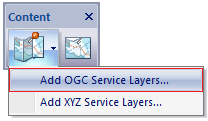
- Using the "Content" toolbar select the button named "Add Service Layers" and select the popup menu option named "Add OGC Service Layers..." to display the "Add OGC Service" dialog window as shown below.
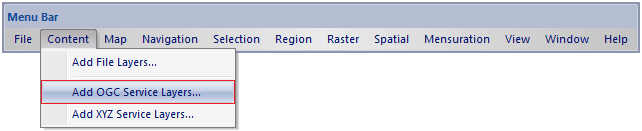
- OR...using the Menu Bar "Content" popup menu select the option named "Add OGC Service Layers... " to display the "Add OGC Service" dialog window as shown below.
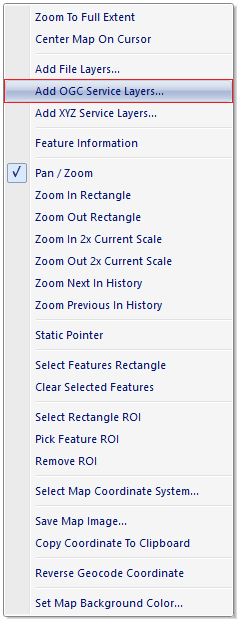
- OR ...using the Map Window right-click popup menu select the option named "Add OGC Service Layers... " to display the "Add OGC Service" dialog window as shown below:
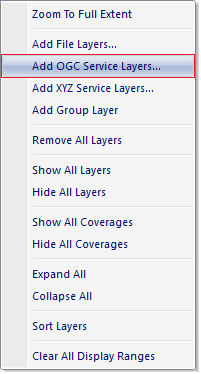
- OR ...using the Content Docking Window Tree Control root node right-click popup menu select the option named "Add OGC Service Layers... " to display the "Add OGC Service" dialog window as shown below:
- Select the "Web Map Service (OGC WMS)" option in the "Protocol" drop down list box and fill out the nessesary information in the "Add OGC Service" dialog window and click "OK" as shown below:
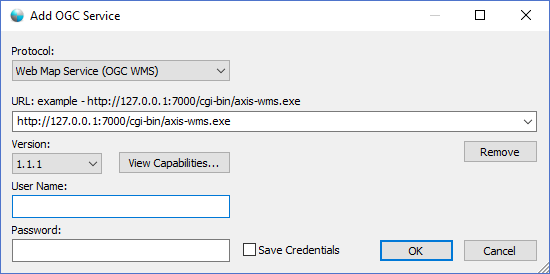
If the connection to the service is successful the WMS Service will be added as a map layer in the Content Docking Window Tree Control and you can start using the service.
Connect To The WMTS Service
- Using the "Content" toolbar select the button named "Add Service Layers" and select the popup menu option named "Add OGC Service Layers..." to display the "Add OGC Service" dialog window as shown below.
- OR...using the Menu Bar "Content" popup menu select the option named "Add OGC Service Layers... " to display the "Add OGC Service" dialog window as shown below.
- OR ...using the Map Window right-click popup menu select the option named "Add OGC Service Layers... " to display the "Add OGC Service" dialog window as shown below:
- OR ...using the Content Docking Window Tree Control root node right-click popup menu select the option named "Add OGC Service Layers... " to display the "Add OGC Service" dialog window as shown below:
- Select the "Web Map Tile Service (OGC WMTS)" option in the "Protocol" drop down list box and fill out the nessesary information in the "Add OGC Service" dialog window and click "OK" as shown below:
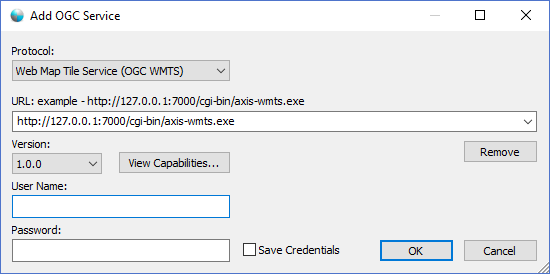
If the connection to the service is successful the WMTS Service will be added as a map layer in the Content Docking Window Tree Control and you can start using the service.
Connect To The XYZ Service
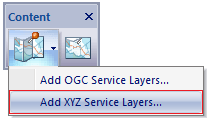
- Using the "Content" toolbar select the button named "Add Service Layers" and select the popup menu option named "Add XYZ Service Layers..." to display the "Add XYZ Service" dialog window as shown below.
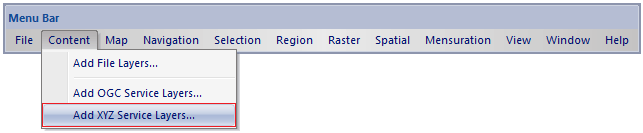
- OR...using the Menu Bar "Content" popup menu select the option named "Add XYZ Service Layers... " to display the "Add XYZ Service" dialog window as shown below.
- OR ...using the Map Window right-click popup menu select the option named "Add XYZ Service Layers... " to display the "Add XYZ Service" dialog window as shown below:
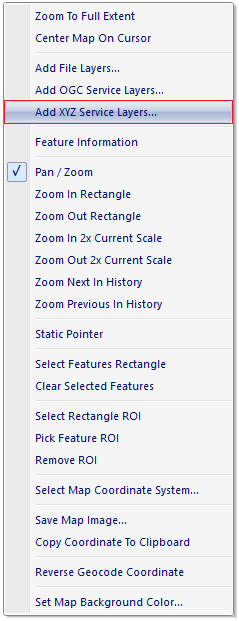
- OR ...using the Content Docking Window Tree Control root node right-click popup menu select the option named "Add XYZ Service Layers... " to display the "Add XYZ Service" dialog window as shown below:
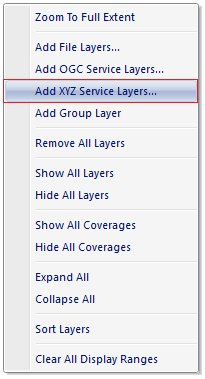
- Fill out the nessesary information in the "Add XYZ Service" dialog window and click "OK" as shown below:
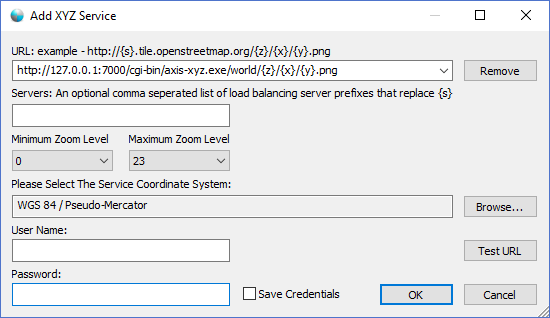
If the connection to the service is successful the XYZ Service will be added as a map layer in the Content Docking Window Tree Control and you can start using the service.
For a more detailed explanation use Personal Map Server using Map Publisher Desktop please see the help documentation for Map Publisher Desktop that is accesible via the Map Publisher Desktop application using the Help menu or F1.
Documentation is published by LCIC with the Axis release and imported here in full. Screenshots and wording are the vendor's own.