Colors Dialog
The map colors dialog window allows the user to pick a color from a palette or specify the color values manually to set the color of a feature in the map.
The dialog controls are:
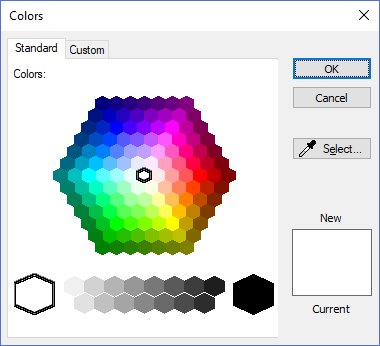
- Standard Page
A hexagon shaped color palette the user can click on to select the desired color.
- Custom Page
A hexagon shaped color palette the user can click on and drag to select the desired color. Users can specify exact hue, saturation and luminence or red, green and blue values.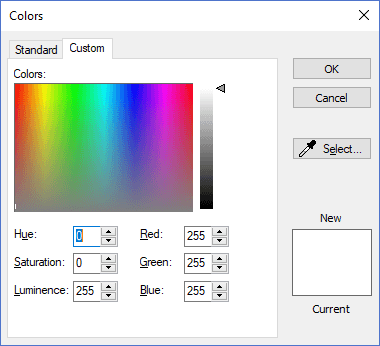
- Select
When this button is clicked the cursor turns into color sucker mode and selects the color of the pixel when the mouse is clicked on any window in the screen.. - OK
When this button is clicked the dialog sets the color value for the feature property selected and closes the dialog window. - Cancel
Closes the dialog window.
Documentation is published by LCIC with the Axis release and imported here in full. Screenshots and wording are the vendor's own.