Library Pane
Overview
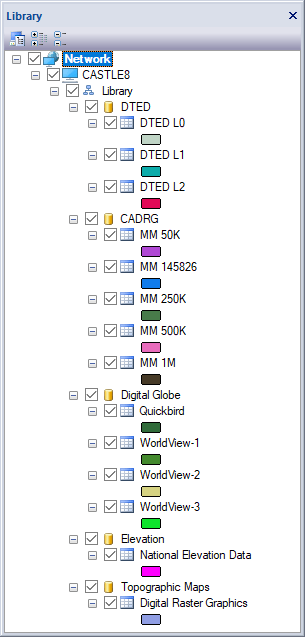
The library pane docking window allows users to connect to one or more Spatial Library Server instances and create, view, edit, style, sort and delete library catalogs and catalog datasets. Every Spatial Library Server can contain one or more catalogs. Each catalog can have zero to many datasets. A dataset is a table that contains metadata about the geospatial files of like type on the users network. Use the Library Network Menu "Connect To Computer" command to connect to a Spatial Library Server instance. Use the Library Library Menu "Create Catalog" command to create a catalog. Use the Library Catalog Menu "Import Data" command to scan the network for geospatial files and import them into catalog datasets.
Once you have populated one or more catalogs with data you can style, sort and edit your datasets while viewing the content in the Map View, Features Pane and Properties Pane . Use the Map View to visualize the vector footprints of the geospatial files on your network. Use the Features Pane to see metadata about each file.
Dialogs
Menus
Toolbar
- Connect To Computer
Launches the Library Server connection dialog window.

- Expand All
Expands all sub nodes of the root node.
- Collapse All
Collapses all sub nodes of the root node.
Docking Window
Dockable panes are special windows that can either be docked in a dock site or included in a tabbed pane. The main difference with a view is that a view is built to display the main application content while a pane provides context relative content to what the view has. When a pane is docked in a tabbed pane, click and drag the tab title to rip it from the tabbed view. Drop the cursor on the docking targets that appear when dragging to dock in a new location. Use the "Pin" menu icon in the title bar of the pane window to auto show / hide the pane when not in use. Use the Main Menu, Map Menu or Panes Toolbar to show or hide the application docking windows.
Documentation is published by LCIC with the Axis release and imported here in full. Screenshots and wording are the vendor's own.