Create Virtual Mosaic Dialog
The raster operation create virtual mosaic dialog window allows the user to create a virtual mosaic file that treats one or more source images as a single image file.
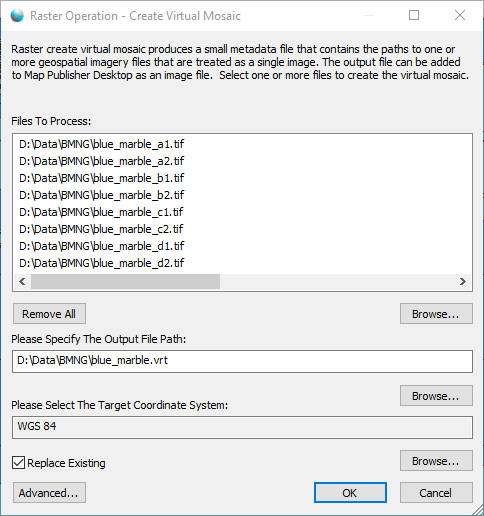
The dialog controls are:
- Files To Process
A list of one or more geospatial imagery files that the user wants to include in the virtual mosaic. - Remove All
When this button is clicked all the file paths are removed from the list. - List - Browse
When this button is clicked a file select dialog is displayed for the user to select one or more geospatial imagery files to be added to the list. - Please Specify The Output File Path
The file path where the virtual mosaic image file should be created. - Output File Path - Browse
When clicked a file browse dialog window is displayed allowing the user to select the output file name and path. - Please Select The Target Coordinate System
A read-only text box that displays the currently selected target coordinate system. Use the Browse button to change the selection. - Target Coordinate System - Browse
When clicked the Coordinate System Dialog window is displayed allowing the user to select the target coordinate system. - Replace Existing
Select this option if the output file should be replaced if it already exists. - Advanced
When clicked the Advanced Raster Options Dialog window is displayed allowing the user to specify additional options for the operation. - OK
When this button is clicked the dialog queues the Create Virtual Mosaic task with the Parallel Processing Server and closes the dialog. Use the Task Pane window to monitor the task progress. A popup balloon window and the Task Pane will alert the user when the task is complete. - Cancel
Closes the dialog window.
Documentation is published by LCIC with the Axis release and imported here in full. Screenshots and wording are the vendor's own.