Document Layer Raster Menu
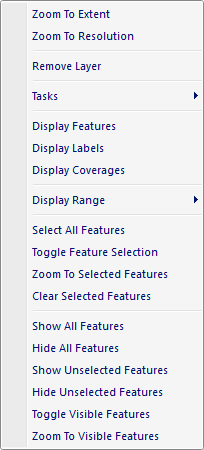
The popup menu items are:
- Zoom To Extent
Zooms the active map window to the extent (minimum bounding rectange) of the selected raster layer. -
Zoom To Resolution
Zooms the active map window to the zoom level that is closest to the native resolution (100%) of the selected raster layer. -
Remove Layer
When this option is selected the selected raster layer is removed from the Document Pane tree control and from the active Map View. -
Tasks
When this option is selected a fly-out menu is displayed allowing the user to execute one of the Raster Operation tasks on the selected raster layer. -
Display Features
When this option is selected the feature graphics for the selected raster layer are displayed in the map. -
Display Labels
When this option is selected the label graphics for the selected raster layer are displayed in the map. -
Display Coverages
When this option is selected the coverage graphics for the selected raster layer are displayed in the map. -
Display Range
When this option is selected a fly-out menu is displayed allowing the user to set the minimum and maximum scale levels that the layer should be visible in the active Map View. -
Select All Features
When this option is selected all the features are marked selected and highlighted with the selection color in the active Map View. -
Toggle Feature Selection
When this option is selected the feature selection is reversed so that unselected features are selected and selected features are unselected. -
Zoom To Selected Features
When this option is selected the active Map View is zoomed to the cumulative extent (minimum bounding rectangle) of the selected (highlighted) features. -
Clear Selected Features
When this option is selected all features are marked as unselected and the feature highlight is removed in the active Map View. -
Show All Features
When this option is selected all layer features are made visible in the active Map View. -
Hide All Features
When this option is selected all layer features are made invisible in the active Map View. -
Show Unselected Features
When this option is selected all layer features that are unselected are made visible in the active Map View. -
Hide Unselected Features
When this option is selected all layer features that are unselected are made invisible in the active Map View. -
Toggle Visible Features
When this option is selected the feature visibility is reversed so that invisible features are made visible and visible features are made invisible. -
Zoom To Visible Features
When this option is selected the active Map View is zoomed to the cumulative extent (minimum bounding rectangle) of the visible features.
Documentation is published by LCIC with the Axis release and imported here in full. Screenshots and wording are the vendor's own.