Select Features Menu
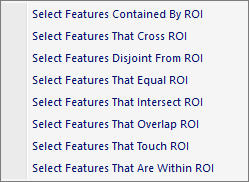
The popup menu items are:
-
Select Features Contained By ROI
When this option is selected all features that are spatially contained by the Region Of Interest (ROI) are marked as selected. The results include any feature A that is contained by any feature B. A feature is contained if and only if no points of feature B lie in the interior of feature A, and at least one point of the interior of feature B lies in the interior of feature A. Use the Region Toolbar to create one or more ROI's. Use the shift-key to limit the selection to the top most layer in the active Map View . Use the control-key to prevent the existing selection from being removed while selecting new features. -
Select Features That Cross ROI
When this option is selected all features that spatially cross the Region Of Interest (ROI) are marked as selected. The results include any feature A that spatially crosses any feature B. A feature crosses another feature if the two features have some, but not all, interior points in common. Use the Region Toolbar to create one or more ROI's. Use the shift-key to limit the selection to the top most layer in the active Map View . Use the control-key to prevent the existing selection from being removed while selecting new features. -
Select Features Disjoint From ROI
When this option is selected all features that are spatially disjoint from the Region Of Interest (ROI) are marked as selected. The results include any feature A that does not spatially intersect any feature B. You can think of this as feature A does not share any space with feature B. Use the Region Toolbar to create one or more ROI's. Use the shift-key to limit the selection to the top most layer in the active Map View . Use the control-key to prevent the existing selection from being removed while selecting new features. -
Select Features That Equal ROI
When this option is selected all features that are spatially equal from the Region Of Interest (ROI) are marked as selected. The results include any feature A if it is spatially equal to any feature B. You can think of this as feature A has the same geometric structure as feature B. The point ordering can be different but the geometric structure must be the same. Use the Region Toolbar to create one or more ROI's. Use the shift-key to limit the selection to the top most layer in the active Map View . Use the control-key to prevent the existing selection from being removed while selecting new features. -
Select Features That Intersect ROI
When this option is selected all features that spatially intersect the Region Of Interest (ROI) are marked as selected. The results include any feature A that spatially intersects any feature B. A feature intersects another feature if the two features share any portion of space. In other words, they are not disjoint. Use the Region Toolbar to create one or more ROI's. Use the shift-key to limit the selection to the top most layer in the active Map View . Use the control-key to prevent the existing selection from being removed while selecting new features. -
Select Features That Overlap ROI
When this option is selected all features that spatially overlap the Region Of Interest (ROI) are marked as selected. The results include any feature A that spatially overlaps any feature B. A feature overlaps another feature if the two features share space, are of the same dimension, but are not completely contained by each other. Use the Region Toolbar to create one or more ROI's. Use the shift-key to limit the selection to the top most layer in the active Map View . Use the control-key to prevent the existing selection from being removed while selecting new features. -
Select Features That Touch ROI
When this option is selected all features that spatially touch the Region Of Interest (ROI) are marked as selected. The results include any feature A that spatially touches any feature B. A feature touches another feature if they have at least one point in common but their interiors do not intersect. Use the Region Toolbar to create one or more ROI's. Use the shift-key to limit the selection to the top most layer in the active Map View . Use the control-key to prevent the existing selection from being removed while selecting new features. -
Select Features That Are Within ROI
When this option is selected all features that are spatially within the Region Of Interest (ROI) are marked as selected. The results include any feature A that is completely inside any feature B. Use the Region Toolbar to create one or more ROI's. Use the shift-key to limit the selection to the top most layer in the active Map View . Use the control-key to prevent the existing selection from being removed while selecting new features.
Documentation is published by LCIC with the Axis release and imported here in full. Screenshots and wording are the vendor's own.