Document Pane
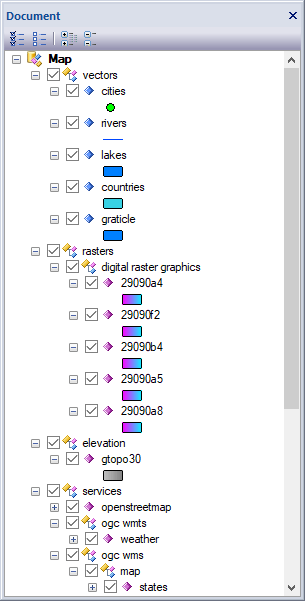
Overview
The document pane docking window allows users to add one or more geospatial datasets as layers to the map. Geospatial datasets include vector files, raster files, elevation files, OGC WMS, OGC WMTS and XYZ Tile Services. Once layers are added to the map they can be organized using group layers and sorted by geometry type or ground sample distance. Each layer node has a right click popup context menu that contains commands specific to the type of data the layer represents. Selecting a layer node will auto populate the Properties Pane and also the Features Pane if the associated dataset is a vector dataset. Use the control key and shift key to select multiple tree nodes. Drag and drop tree nodes to rearrange the layer z-order. Use the Properties Pane to style the graphic elements of the map and layer datasets.
Dialogs
Menus
Toolbar
- Show All
Shows all sub nodes of the root node.
- Hide All
Hides all sub nodes of the root node.
- Expand All
Expands all sub nodes of the root node.
- Collapse All
Collapses all sub nodes of the root node.
Docking Toolbar
Docking Window
Dockable panes are special windows that can either be docked in a dock site or included in a tabbed pane. The main difference with a view is that a view is built to display the main application content while a pane provides context relative content to what the view has. When a pane is docked in a tabbed pane, click and drag the tab title to rip it from the tabbed view. Drop the cursor on the docking targets that appear when dragging to dock in a new location. Use the "Pin" menu icon in the title bar of the pane window to auto show / hide the pane when not in use. Use the Main Menu, Map Menu or Panes Toolbar to show or hide the application docking windows.
Documentation is published by LCIC with the Axis release and imported here in full. Screenshots and wording are the vendor's own.