Channels Page
The advanced raster options channels page dialog window allows users to select what source color channels are included in the output image, override the no data value for each color channel and configure the color channel order for the output image file.
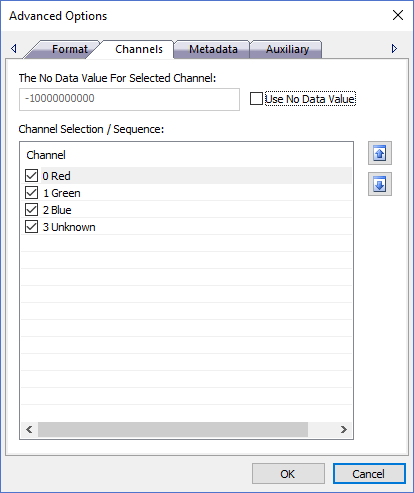
The dialog controls are:
- The No Data Value For Selected Channel
When the "Use No Data Value" option is selected the no data value text box will be enabled and the user can enter a number value to override the null pixel value. The "No Data Value For Selected Channel" and "Use No Data Value" controls reflect the values for the currently selected row in the "Channel Selection / Sequence " list control. If the source image(s) have a no data value already defined in file header this textbox will be enabled when the property page is displayed. Some providers deliver imagery where the no data value is not stored in the file header but rather in a metadata sidecar file. If the application is unable to identify the no data value the user can override the default value by using this option. If no "no data value" can't be discovered the textbox will be disabled and it will be assumed that the file is completely opaque (no transparency). - Use No Data Value
Select this option if you want to use the value in the textbox to be treated as the no data (null pixel) value for a given color channel. The "No Data Value For Selected Channel" and "Use No Data Value" controls reflect the values for the currently selected row in the "Channel Selection / Sequence " list control. If the source image(s) have a no data value already defined in file header this checkbox will be selected when the property page is displayed. Some providers deliver imagery where the no data value is not stored in the file header but rather in a metadata sidecar file. If the application is unable to identify the no data value the user can override the default value by using this option. If no "no data value" can't be discovered the checkbox will not be selected and it will be assumed that the file is completely opaque (no transparency). - Interleave Format
A drop down list box of possible channel (band) layouts for selected output file format. Band interleave stores all pixels for a given color band (channel) together whereas Pixel interleave stores all the bands for each pixel as an interleaved group. - Resampling Algorithm
A drop down list box of possible resampling algorithms for the selected output file format. Resampling is the process of resizing the image and how pixel color values are calculated when merging multiple source pixels into one output pixel. Nearest Neighbor is the fastest option and produces decent looking results while the other options are slower but produce better looking results. Bilinear or Cubic Convolution are recommended when processing elevation data because they preserve the original height values better than the other options. - Compression Codec
The file format specific pixel compression algorithm to use when creating the output file. Compression produces file sizes that can be much smaller than uncompressed files. Compressing files can result in data loss because in some cases pixel values may be changed during the compression and / or uncompress operations. - Jpeg Quality
A numeric quality setting applicable only when using the jpeg compression codec. Valid range for the setting is 1 - 100 where 1 is the worse quality but fastest compression time and smallest output size, and 100 is the best quality but slowest compression time and largest output size. - Tile Size
The file format specific internal tile size in pixels. Tile size ranges can change based on the file format and are usually factors of 2 such as 64, 128, 256, 512, 1024, 2048, etc. If the output image size is going to be large (greater than 500 MB) then a larger tile size can improve reading and writing data to the file (speed). If the image size is small then a large tile size can create file sizes that are bigger than needed and may waste disk space. - Create A World File
If this option is selected a text file with the same name as the output file name will be created with a .tfw extension that contains six double precision numbers that represent the affine transform for the image. The affine transform values are as follows:
- Pixel Size X (GSDX)
- Rotation about the Y axis (usually 0.0)
- Rotation about the X axis (usually 0.0)
- Pixel Size Y (GSDY)
- X coordinate of upper left pixel center
- Y coordinate of upper left pixel center
The values of the affine transform define the location, width, height and rotation of how an image is rendered onto a map. In other words, the area on the map where the image is located. Normally it is not nessecary to generate a world file but some applications require it.
- Recompute Channel Statistics
Select this option if you want the color channel statistics such as minimum, maximum, mean, mode and standard deviation to be recomputed at the end of the process. Statistics help image viewers render the imagery better on a computer screen by enhancing color contrast and improving image quality. Statistics are essential when rendering imagery with greater than eight bits per band. - OK
When this button is clicked all properties on the dialog pages are saved and the dialog window is closed. - Cancel
Closes the dialog window.
Documentation is published by LCIC with the Axis release and imported here in full. Screenshots and wording are the vendor's own.