Set Feature State Dialog
The features set feature state dialog window allows the user to set the row state of the features in the Map View and Features List Control using a query builder that specifies the WHERE clause for a SQL SELECT statement.
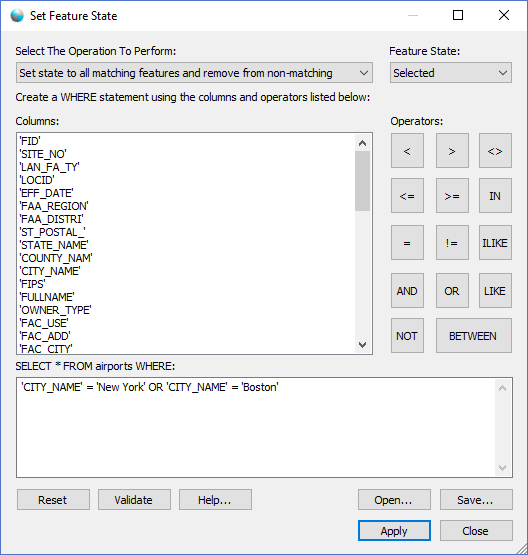
The dialog controls are:
- Select The Operation To Perform
A drop down list control that determines the behaviour of how the feature states are applied to the rows. There are three options and they are:
- Set state to all matching features and remove from non-matching
- Set state to only matching features
- Remove state from all matching feature
- Feature State
A drop down list control that determines the state flag to set on the matching rows. The options are Highlighted, Selected and Visible. Highlighted selects the matching rows as if they were clicked on with the mouse but does not change the value of the row icons on the left in the Feature List Control. Selected sets the matching rows as selected (yellow background), the selected "Pin" icon on the row will be enabled and the feature geometries in the Map View window will have a highlighted perimeter. Visible sets the matching rows as visible, the row checkbox will be checked on and the feature geometries in the Map View window will be visible. - Columns
A list of column names in the selected geometry dataset attributes table. - Operators
When clicked the operator buttons will add the SQL operator symbol to the end of the text specified in the SELECT text box window. Users can use these buttons as a reference for what SQL operators are supported and as a convienent way to construct the WHERE clause. - SELECT * FROM <table_name> WHERE
The text box displays the SQL WHERE clause used to filter the Features List Control window. - Reset
When clicked this button will clear the text from the SELECT * FROM <table_name> WHERE text box. - Validate
When clicked this button will validate the specified WHERE clause is valid and does not contain errors. - Help
When clicked the button will launch this help guide and navigate to this help topic page. - Open
When clicked the button will display an open file dialog window where the user can select a saved filter file. - Save
When clicked the button will display a file save dialog window where the user can specify a file location to save the filter. - Apply
When clicked the button will attempt to set the feature state for the rows in the Features List Control and Map View Window using the specified SQL WHERE clause. - Close
Closes the dialog window.
Documentation is published by LCIC with the Axis release and imported here in full. Screenshots and wording are the vendor's own.