Document Layer Group Menu
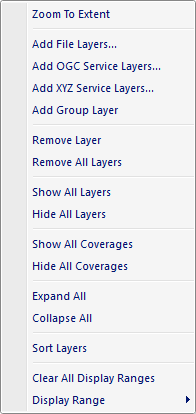
The popup menu items are:
- Zoom To Extent
Zooms the active map window to the cumulative extents (minimum bounding rectange) of the visible layers that exist under the selected group layer. -
Add Files Layers
When this option is selected a File Open Dialog window is displayed allowing the user to select one or more supported geospatial files to be added as layers to the active Map View. The new layers are added as children layers to the selected group layer. -
Add OGC Service Layers
When this option is selected the Add OGC Service Dialog window is displayed allowing the user to add an OGC service layer to the active map view. The new layers are added as children layers to the selected group layer. -
Add XYZ Service Layers
When this option is selected the Add XYZ Service Dialog window is displayed allowing the user to add an OSM service layer to the active map view. The new layers are added as children layers to the selected group layer. -
Add Group Layer
When this option is selected a new group layer is added as a child layer to the selected group layer. -
Remove Layer
When this option is selected the selected group layer and all of its children layers are removed from the Document Pane tree control and from the active Map View. -
Remove All Layers
When this option is selected all children layers of the selected group layer are removed from the Document Pane tree control and from the active Map View. -
Show All Layers
When this option is selected all children layers of the selected group layer are made visible in the active Map View. -
Hide All Layers
When this option is selected all children layers of the selected group layer are made invisible in the active Map View. -
Show All Coverages
When this option is selected the coverages of all children layers are made visible in the active Map View. -
Hide All Coverages
When this option is selected the coverages of all children layers are made invisible in the active Map View. -
Expand All
Expands all sub nodes of the selected group layer. -
Collapse All
Collapses all sub nodes of the selected group layer. -
Sort Layers
When this option is selected the children layers of the selected group layer are sorted based on raster resolution and geometry type. -
Clear All Display Ranges
When this option is selected the Minimum and Maximum Scale settings for all children layers of the selected group layer are reset so all the group layers are visible at all display scales. -
Display Range
When this option is selected a fly-out menu is displayed allowing the user to set the minimum and maximum scale levels that the layer should be visible in the active Map View.
Documentation is published by LCIC with the Axis release and imported here in full. Screenshots and wording are the vendor's own.