Create Relief Map Dialog
The raster operation create relief map dialog window allows the user to create relief maps from one or more source elevation images.
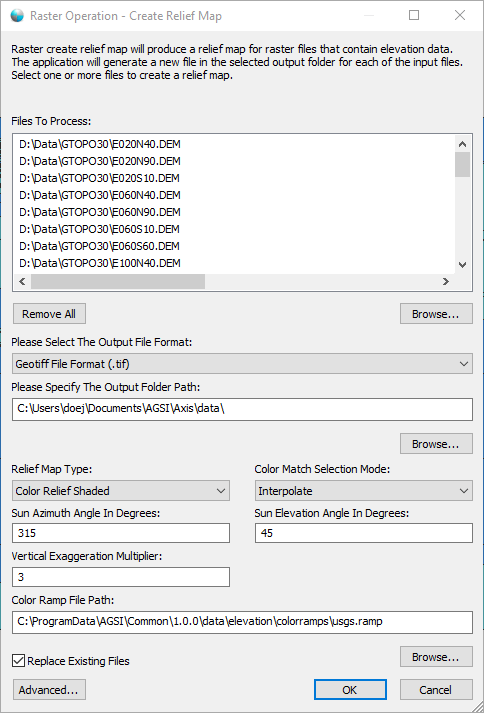
The dialog controls are:
- Files To Process
A list of one or more elevation imagery files that the user wants to produce relief maps for. - Remove All
When this button is clicked all the file paths are removed from the list. - List - Browse
When this button is clicked a file select dialog is displayed for the user to select one or more elevation imagery files to be added to the list. - Please Select The Output File Format
A dropdown list control that displays the supported output file formats. - Please Specify The Output Folder Path
The folder path where the new relief map image files should be created. - Output Folder Path - Browse
When clicked a folder browse dialog window is displayed allowing the user to select the output folder path. - Relief Map Type
A dropdown list control that displays the supported relief map mode types. The relief map types are:
- Aspect
Produces 32-bit float raster with values between 0° and 360° representing the azimuth that slopes are facing. Useful for identifying features with steep slopes and man made structures. - Color Relief
Produces RGB colored output based on color ramp input where elevation values are blended smoothly to create colorized DEM output. - Color Relief Shaded
Combines the "Hill Shade" and "Color Relief" operations to produce nice looking colored 3D-looking output that is useful for visualizing the terrain. - Hill Shade
Produces nice looking greyscale colored 3D-looking output that is useful for visualizing the terrain. - Roughness
Produces a single-band raster with values computed from the elevation. Roughness is the largest inter-cell difference of a central pixel and its surrounding cell. - Slope
Produces a 32-bit float raster with slope values. - Terrain Ruggedness Index
Produces a single-band raster with values computed from the elevation that are the mean difference between a central pixel and its surrounding cells. - Topographic Position Index
Produces a single-band raster with values computed from the elevation that are the difference between a central pixel and the mean of its surrounding cells.
- Aspect
- Color Match Selection Mode
A dropdown list control that displays the supported color match selection modes for Color Relief and Color Relief Shaded maps. The color match selection mode determines how color values are computed when matching elevation values to colors in the color ramp. - Sun Azimuth Angle In Degrees
Azimuth angle of the light, in degrees. 0 if it comes from the top of the raster, 90 from the east, the default value, 315, should rarely be changed as it is the value generally used to generate shaded maps. - Sun Elevation Angle In Degrees
Elevation or altitude of the light, in degrees. 90 if the light comes from above the elevation data source, 0 if it is raking light. - Vertical Exaggeration Multiplier
Vertical exaggeration used to pre-multiply the elevation values to exaggerate the terrain. - Color Ramp File Path
The color ramp file used for this raster data source when the "Relief Map Type" option is set to "Color Relief" or "Color Relief Shaded". - Color Ramp File Path - Browse
When clicked a file selection dialog window is displayed allowing the user to select the color ramp file to use. - Replace Existing Files
Select this option if the output files should be replaced if they already exists. - Advanced
When clicked the Advanced Raster Options Dialog window is displayed allowing the user to specify additional options for the operation. - OK
When this button is clicked the dialog queues the Create Relief Map task with the Parallel Processing Server and closes the dialog. Use the Task Pane window to monitor the task progress. A popup balloon window and the Task Pane will alert the user when the task is complete. - Cancel
Closes the dialog window.
Documentation is published by LCIC with the Axis release and imported here in full. Screenshots and wording are the vendor's own.