Map Page
The product settings map page dialog window allows the user to set default values when creating new map documents.
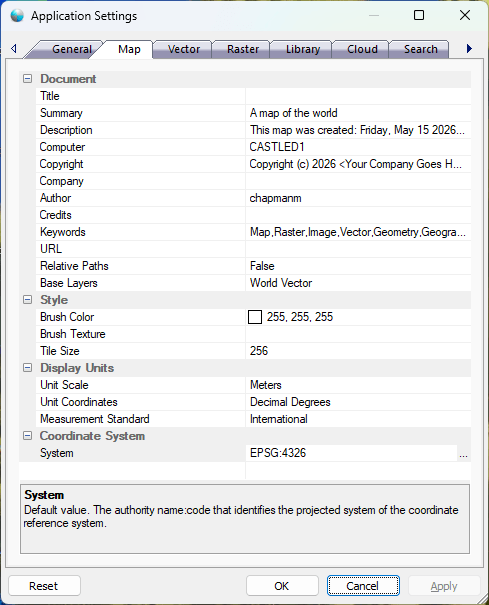
The dialog controls are:
Document
- Title
Default value. The human readable title for the map. - Summary
Default value. The human readable summary of the map contents. - Description
Default value. The human readable detailed description of the map contents. - Computer
Default value. The computer on which the map was created. - Copyright
Default value. The copyright of the map. - Company
Default value. The company of the map author if one exists. - Author
Default value. The person who created the map. - Credits
Default value. The special credits to others from the author. - Keywords
Default value. A comma seperated list of machine searchable keywords that help identify the map. - URL
Default value. The URL that points to other information on the web related to the map. - Relative Paths
Default value. Saving file based data source paths as relative paths in the map. - Base Layers
Default value. Layers that are added to a new map document when it is initially created.
Background Graphics
- Brush Color
Default value. The brush color of the map window. - Brush Texture
Default value. The image file that is used to brush the map window. - Unit Scale
Default value. The unit of measurement for which the map scale is displayed in the status bar. - Unit Coordinates
Default value. The unit of measurement for which the cursor coordinates are displayed in the status bar. - Measurement Standard
Default value. The measurement standard for which units are displayed in the status bar.
Coordinate System
- System
Default value. The authority name:code that identifies the projected system of the coordinate reference system.
Buttons
- Reset
When this button is clicked the dialog resets all properties on the current page to the original values that were present after product installation. - OK
When this button is clicked all properties on the dialog pages are saved and the dialog window is closed. - Cancel
Closes the dialog window. - Apply
When this button is clicked all properties on the dialog pages are saved but the dialog window is not closed.
Documentation is published by LCIC with the Axis release and imported here in full. Screenshots and wording are the vendor's own.