Find Value Dialog
The features find value dialog window allows the user to find values in the Features List Control that match or partially match a given search criteria.
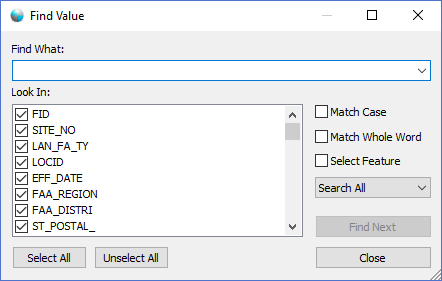
The dialog controls are:
- Find What
A text box that contains a text string to search the features list control with. - Look In
A list box that contains the column names of the dataset that is loaded in the Features List Control. When the Find Next button is clicked the dialog will search only the columns in the list box that are checked on. - Select All
When the button is clicked it will set all the column names in the Look In list box to be checked on. - Unselect All
When the button is clicked it will set all the column names in the Look In list box to be checked off. - Match Case
When this option is selected the Find Next button will only find matches in the Features List Control that contain the exact letter casing that match the Find What text value. - Match Whole Word
When this option is selected the Find Next button will only find matches in the Features List Control that contain an exact match for the Find What text value. - Select Feature
When this option is selected the Find Next button will set the feature state of every row that matches the Find What text value to a selected state. When this option is selected it will also change the label text of the Find Next button to "Find All". - Search All
The search all drop down list control contains three options. The options are Search All, Search Up and Search Down. Search All searches all rows in the Feature List Control regardless of what row is currently highlighted. The Search Up option will only search the rows above the currently highlighted row. The Search Down option will only search the rows below the currently highlighted row. - Find Next
The text label of the Find Next button changes depending on the state of the Select Feature checkbox. If the Select Feature checkbox is off the Find Next botton will be labeled as 'Find Next' and each time it is clicked it will advance to the next matching row / column value that contains a match. If the Select Feature checkbox is on the Find Next button label text will be set to "Find All" and each time it is clicked it will set all matching rows to the selected state. - Close
Closes the dialog window.
Documentation is published by LCIC with the Axis release and imported here in full. Screenshots and wording are the vendor's own.