Import Data Dialog
The library import data dialog window allows a user to select one or more network locations to interrogate when importing metadata into a catalog.
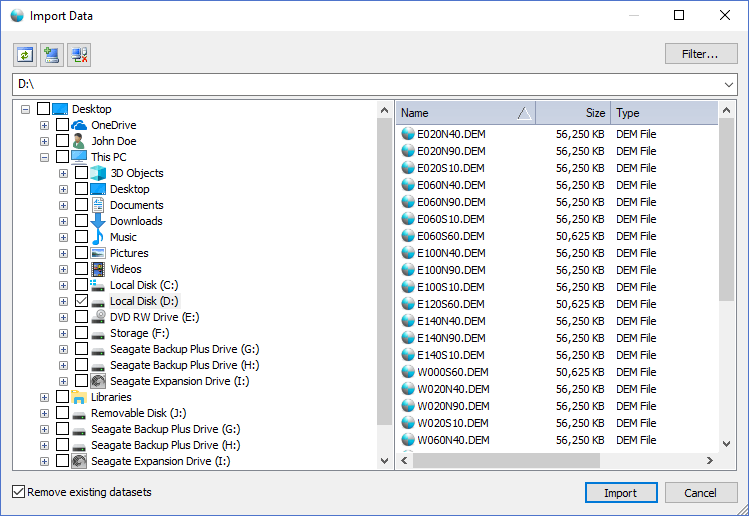
The dialog controls are:
- Refresh
When clicked this button refreshes the Windows Shell Tree Control to reflect the current state of the drives / directories.

- Connect Drive
When clicked this button displays the Map Network Drive dialog window where a user can map a drive location to a drive letter that will be added to the Windows Shell Tree Control.

- Disconnect Drive
When clicked this button displays the Disconnect Network Drives dialog window where a user can select one or more mapped drives to disconnect that will be removed from the Windows Shell Tree Control.
- Filter
When clicked this button displays the library Filter Dialog that allows a user to filter the import process for specific file formats. - Drive Path
A drop down list box that displays the currently selected drive path in the Windows Shell Tree Control and a history of previously selected drives. - Windows Shell Tree Control
A tree control that displays the drives and directories mapped to the users computer. Users must select (check) one or drives / directories to be scanned during the import process. Clicking the checkbox by a tree item selects that drive or directory to be scanned but none of its sub-directories to be scanned. Clicking the checkbox twice (two check marks on the checkbox) selects that drive or directory to be scanned and all of its children sub-directories and files. Clicking the checkbo three times removes the chack marks from the checkbox and removes it from the import process. - Windows Shell List Control
A list control that displays the files that are contained by the selected drive or directory in the Windows Shell Tree Control. Only supported file format extensions are displayed in the list. - Remove existing datasets
Select this option if you want the import process to remove all existing datasets from the catalog the user is importing metadata into. If the option is unselected then the import process will append data to the existing catalog datasets. - Import
When this button is clicked the dialog will submit the import task to the Parallel Processing Server for execution and close the dialog window. Users can monitor the import process progress and results using the Task Pane window. When the process is complete the Library Pane Tree Control will automatically refresh to reflect the changes in the catalog datasets and a balloon window will alert the user that the import process has completed. - Cancel
Closes the dialog window.
Documentation is published by LCIC with the Axis release and imported here in full. Screenshots and wording are the vendor's own.