Map View Menu
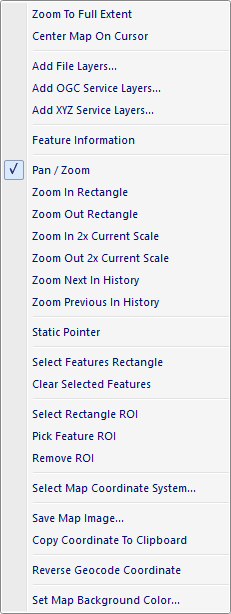
The popup menu items are:
-
Zoom To Extent
When this option is selected the active Map View is zoomed to the cumulative extent (minimum bounding rectangle) of the all the visible layers. -
Center Map On Cursor
When this option is selected the map view is centered where the user left clicks the map. -
Add Files Layers
When this option is selected a File Open Dialog window is displayed allowing the user to select one or more supported geospatial files to be added as layers to the active Map View. Add OGC Service Layers
When this option is selected the Add OGC Service Dialog window is displayed allowing the user to add an OGC service layer to the active map view.-
Add XYZ Service Layers
When this option is selected the Add XYZ Service Dialog window is displayed allowing the user to add an OSM service layer to the active map view. -
Feature Information
When this option is selected the active Map View is placed in Feature Information mode allowing the user to click a feature in the map and view its information in theInformation Pane . Pan / Zoom
When this option is selected the active Map View is placed in Pan / Zoom mode allowing the user to pan and zoom the active Map View using the left mouse button and mouse wheel.Zoom In Rectangle
When this option is selected the active Map View is placed in Zoom In Rectangle mode allowing the user to sweep out a rectangle that snaps the view into that location.Zoom Out Rectangle
When this option is selected the active Map View is placed in Zoom Out Rectangle mode allowing the user to sweep out a rectangle that snaps the view away from that location.-
Zoom In 2x Current Scale
When this option is selected the active Map View is zoomed in to the next scale resolution. -
Zoom Out 2x Current Scale
When this option is selected the active Map View is zoomed out to the next scale resolution. -
Zoom Next In History
When this option is selected the active Map View is zoomed to the next location that is stored in the active Map View navigation history. -
Zoom Previous In History
When this option is selected the active Map View is zoomed to the previous location that is stored in the active Map View navigation history. -
Static Pointer
When this option is selected the active Map View is placed in Static Pointer mode disabling all mouse actions. -
Select Features Rectangle
When this option is selected the active Map View is placed in Select Features Rectangle mode allowing the user to sweep out a rectangle that sets all intersecting features as selected. Use the shift-key to limit the selection to the top most layer in the active Map View. Use the control-key to prevent the existing selection from being removed while selecting new features. -
Clear Selected Features
When this option is selected all features for all layers in the active Map View are marked as unselected. - Select Rectangle ROI
When this option is selected the active Map View is placed in Select Rectangle ROI mode allowing the user to sweep out a rectangle that defines a rectangle region of interest. Use the control-key to prevent the existing ROI from being removed while defining a new ROI. - Pick Feature ROI
When this option is selected the active Map View is placed in Pick Feature ROI mode allowing the user to left click a feature in the Map View to use as the region of interest. The top-most intersecting feature is selected as the ROI. Use the control-key to prevent the existing ROI from being removed while defining a new ROI. - Remove ROI
When this option is selected the ROI is removed from the active Map View. -
Select Map Coordinate System
When this option is selected the Coordinate System Dialog window is displayed allowing the user to select the active Map View coordinate system. -
Save Map Image
When this option is selected a File Save As Dialog window is displayed allowing the user to save the active Map View as an image file. Copy Coordinate To Clipboard
When this option is selected the coordinate of the mouse cursor (at the location the right click menu is displayed) is copied to the clipboard specified in the units of the map coordinate system.Reverse Geocode Coordinate
When this option is selected the coordinate of the mouse cursor (at the location the right click menu is displayed) is used as the search criteria in the Search Pane to identify the nearest address or place. To refine the reverse geocoding results zoom in on the map to narrow the results.Set Map Background Color
When this option is selected a Colors Dialog window is displayed allowing the user to set the background color the active Map View.
Documentation is published by LCIC with the Axis release and imported here in full. Screenshots and wording are the vendor's own.