Navigation Toolbar
The navigation toolbar control allows users to pan and zoom the Map View, set the map coordinate system and view information from features in the map.
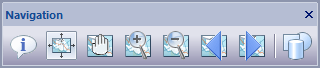
The toolbar buttons are:
- Feature Information
When this option is selected the active Map View is placed in Feature Information mode allowing the user to click a feature in the map and view its information in the Information Pane .

- Zoom To Full Extent
When this option is selected the active Map View is zoomed to the cumulative extent (minimum bounding rectangle) of the visible layers / features in the active Map View.

- Pan / Zoom
When this option is selected the active Map View is placed in Pan / Zoom mode allowing the user to pan and zoom the active Map View using the left mouse button and mouse wheel.

- Zoom In Rectangle
When this option is selected the active Map View is placed in Zoom In Rectangle mode allowing the user to sweep out a rectangle that snaps the view into that location.

- Zoom Out Rectangle
When this option is selected the active Map View is placed in Zoom Out Rectangle mode allowing the user to sweep out a rectangle that snaps the view away from that location.
- Zoom Previous In History
When this option is selected the active Map View is zoomed to the previous location that is stored in the active Map View navigation history.
- Zoom Next In History
When this option is selected the active Map View is zoomed to the next location that is stored in the active Map View navigation history.
- Select The Map Coordinate System
When this option is selected the Coordinate System Dialog window is displayed allowing the user to select the active Map View coordinate system.
Documentation is published by LCIC with the Axis release and imported here in full. Screenshots and wording are the vendor's own.