Features Pane
Overview
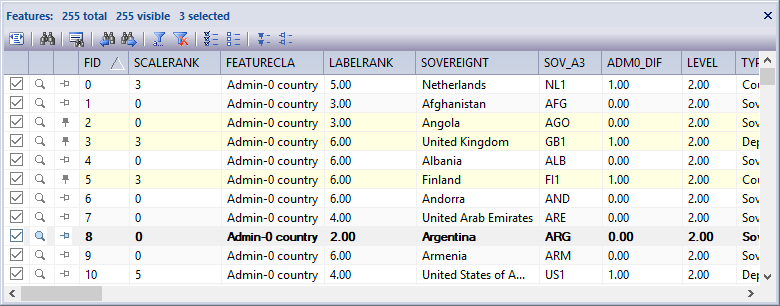
The features pane docking window allows users to view feature attributes, sort, filter, select and find data. A vector feature is comprised of one geometry and one row of text data that describes the geometry. When a user selects a layer in the Document Pane tree control the features pane list control is populated with the feature rows if the layer is a vector dataset. Users can show and hide features, select and unselect features and zoom to the extent of features using the row icons. Users can sort the rows ascending and descending by clicking the column headers or filter data using the Apply Attribute Filter Dialog. Users can also set feature row states using the Set Feature State Dialog and search for values in the data using the Find Value Dialog . The window title bar displays the total number of features contained in the dataset, the number of features that are currently visible in the Map View window and the number of features that are currently selected (highlighted yellow in the screenshot above).
Dialogs
List
- Visible Column
Icon in the first column of the list. When the check box is checked on the feature geometry for that row is visible in the Map View window. When the check box is checked off the feature geometry for that row is not visible in the Map View window.
- Zoom To Feature Column
Icon in the second column of the list. When the magnify glass is clicked the active Map View is zoomed to the extent (minimum bounding rectangle) of the feature geometry for that row.
- Selection Column
Icon in the third column of the list. When the pin icon is clicked the feature geometry for that row is toggled between selected and unselected. When the feature is selected the pin icon points downward, the list row is highlighted with a yellow background and the feature geometry has a selected style applied to it. The default selection style is a yellow perimeter. Row selection is used when processing vector and catalog datasets using the spatial and library utility dialogs.
- Add Layer Column (catalog datasets only)
Icon in the fourth column of the list. When the pin icon is clicked the feature geometry for that row is toggled between selected and unselected. When the feature is selected the pin icon points downward, the list row is highlighted with a yellow background and the feature geometry has a selected style applied to it. The default selection style is a yellow perimeter. Row selection is used when processing vector and catalog datasets using the spatial and library utility dialogs.
- FID Column
Integer in the fourth column of the list (fifth column if a catalog dataset) . Every vector dataset is assigned an FID by the application and it indicates the oridinal offset of the feature data in the source file. FID values start with zero and continue linearly to N-1. - Remaining Columns...
The remaining columns in the list are specified by the feature file. Normally, vector datasets have at least one column that describes the feature geometry. Usually vector datasets have many columns and are different for each dataset.
Menus
Toolbar
- Auto Size
Resizes the list columns to fit to the text in the column rows.
- Find Value
Displays the Find Value Dialog allowing the user to search for text matches or partial text matches in the list data.
- Set Feature State
Displays the Set Feature State Dialog allowing users to set the row state of the features as highlighted, selected or visible using a SQL where statement.
- Find Previous
Searches the list in a reverse direction to find the previous row / column that contains a text match to the search criteria string specified by the user.
- Find Next
Searches the list in a forward direction to find the next row / column that contains a text match to the search criteria string specified by the user.
- Apply Filter
Displays the Apply Attribute Filter Dialog allowing users to filter the features in the list using a SQL where statement.
- Remove Filter
Removes the filter SQL criteria if one is currently applied to the list.
- Show All
Shows all the features in the Map View.
- Hide All
Hides all the features in the Map View.
- Select All
Sets all the features in the list control as selected.
- Unselect All
Sets all the features in the list control as selected.
Docking Window
Dockable panes are special windows that can either be docked in a dock site or included in a tabbed pane. The main difference with a view is that a view is built to display the main application content while a pane provides context relative content to what the view has. When a pane is docked in a tabbed pane, click and drag the tab title to rip it from the tabbed view. Drop the cursor on the docking targets that appear when dragging to dock in a new location. Use the "Pin" menu icon in the title bar of the pane window to auto show / hide the pane when not in use. Use the Main Menu, Map Menu or Panes Toolbar to show or hide the application docking windows.
Documentation is published by LCIC with the Axis release and imported here in full. Screenshots and wording are the vendor's own.