Elevation Page
The advanced tile options elevation page dialog window allows the user to set elevation relief map property settings. Elevation property settings are only applied to tiles when the source imagery is elevation data, otherwise the property settings are ignored.
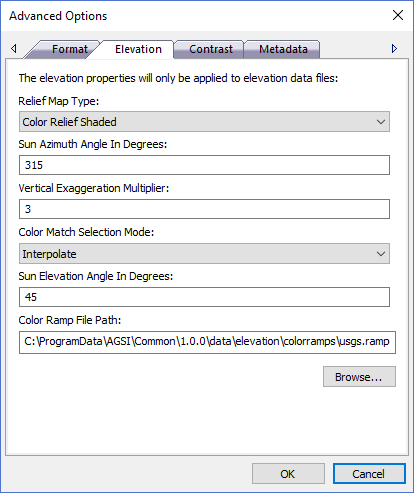
The dialog controls are:
- Relief Map Type
A drop down list box that contains a list of relief map styles. Relief maps are used to visually enhance elevation imagery by making the image appear to be three dimensional. Different relief map types are used to highlight or expose different aspects of the elevation data. Some relief map algorithms use light and shadows to depict hills and valleys while other algorithms highlight terrain that have vertical or near vertical slopes such as buildings or other man made structures. - Sun Azimuth Angle In Degrees
Numeric azimuth angle value of the light in degrees. 0 if it comes from the top of the raster, 90 from the east, the default value, 315, should rarely be changed as it is the value generally used to generate shaded maps. - Vertical Exaggeration Multiplier
Numeric value used to pre-multiply the elevation values to exaggerate the terrain height values. Use this option to make changes in elevation look more exaggerated. - Color Match Selection Mode
A drop down list box of possible color match algorithms that determine how color values are computed when matching elevation values to colors in the color ramp. - Sun Elevation Angle In Degrees
Numeric elevation value or altitude of the light, in degrees. 90 if the light comes from above the elevation data source, 0 if it is raking light. - Color Ramp File Path
The path to the color ramp file used when applying color values to a relief map. Color ramp files are simple text files that define color values that are applied evenly over the height range (maximum height - minimum height) values. The height range is evenly divided by the number of color entries in the ramp file and pixels are colorized using the "Color Match Selection Mode" algorithm to visually depicate relative changes in height. There are several default color ramps installed with the application but users can create custom color ramps using a text editor. Each line in the ramp file defines a color value in the form of BGRA where B = blue, G = green, R = red and A = alpha. Color values are seperated using a colon. - Browse
When this button is clicked a file open dialog dialog window is displayed where the user can select a color ramp file path. - OK
When this button is clicked all properties on the dialog pages are saved and the dialog window is closed. - Cancel
Closes the dialog window.
Documentation is published by LCIC with the Axis release and imported here in full. Screenshots and wording are the vendor's own.