Storage Upload Dialog
The cloud storage upload dialog window uploads files and folders to a cloud storage service directory.
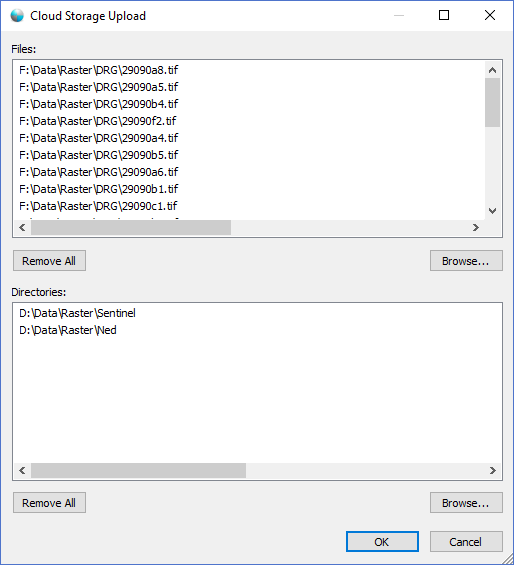
The dialog controls are:
- Files
The files list control displays a list of files to be uploaded to a cloud storage service directory. The files will be placed into the directory selected in the Cloud Pane Tree Control. The cloud file path will be the path of the directory selected in the cloud plus the directory path of the selected file minus any file path UNC or drive letter prefix. - Files - Remove All
When clicked this button will remove all the file paths that are in the Files list control. - Files - Browse
When clicked this button will display a file selection dialog for the user to select one or more files to be added to the Files list control. - Directories
The directories list control displays a list of directories to be uploaded to a cloud storage service directory. The directories will be placed into the directory selected in the Cloud Pane Tree Control. The cloud file path will be the path of the directory selected in the cloud tree control plus the directory path of the selected file minus any file path UNC or drive letter prefix. All files and sub-directories of the directories in the list will be uploaded to the cloud storage service. - Directories - Remove All
When clicked this button will remove all the directory paths that are in the Directories list control. - Directories - Browse
When clicked this button will display a directory selection dialog for the user to select one or more directories to be added to the Directories list control. - OK
When clicked the dialog will submit the cloud upload task to the Parallel Processing Server for uploading. Cloud storage upload tasks are processed by the parallel server because uploading can be a long running task that may continue for lengthy amounts of time. - Cancel
Cancels the operation and closes the dialog window.
Documentation is published by LCIC with the Axis release and imported here in full. Screenshots and wording are the vendor's own.