Within Dialog
The spatial relation within dialog window allows users to identify any geometry A that is spatially within any geometry B.
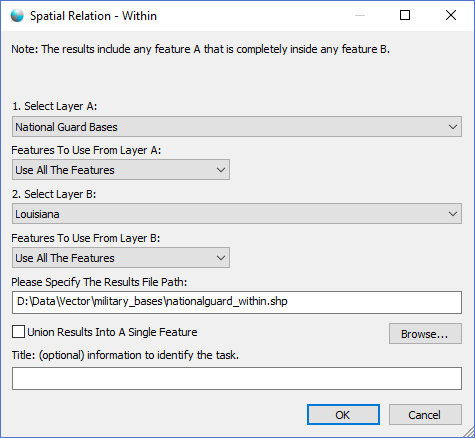
The dialog controls are:
- Select Layer A
A dropdown list box that contains a list of geometry datasets in the active Map View window. - Features To Use From Layer A
A dropdown list box that specifies what features in layer A to process. - Select Layer B
A dropdown list box that contains a list of geometry datasets in the active Map View window. - Features To Use From Layer B
A dropdown list box that specifies what features in layer B to process. - Please Specify The Results File Path
The file path that specifies the location of the output results file. - File Path - Browse
When this button is clicked a file save dialog is displayed for the user to select the file path and file name of the output results file. - Union Results Into A Single Feature
Select this option if you want the resulting geometries to combined into one single geometry. - Title
A text string that will be displayed in the Task Pane window to help uniquely identify the task. - OK
When this button is clicked the dialog queues the Within task with the Parallel Processing Server and closes the dialog. Use the Task Pane window to monitor the task progress. A popup balloon window and the Task Pane will alert the user when the task is complete. - Cancel
Closes the dialog window.
Documentation is published by LCIC with the Axis release and imported here in full. Screenshots and wording are the vendor's own.