Add XYZ Service Dialog
The map add xyz service dialog window allows the user to add an OpenStreetMap (OSM) style XYZ service layer to the Map View window.
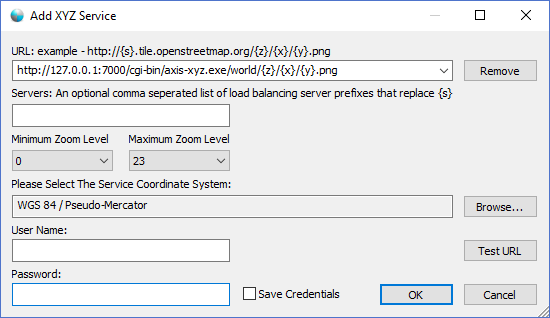
The dialog controls are:
- URL
The URL of the service the user wants to connect to. This url is typically pointing to a script or static directory structure on a server that matches the XYZ request protocol. The application will automatically substitute any parameters enclosed inside the curly braces {} when making tile requests. Users specify the {x}, {y}, {z}, and {s} placeholders to identify the service tile structure. Typically this is in the form of "<protocol>://{s}.<address>:<port>/{z}/{x}/{y}.<extension> " where the parameters have the following meaning:
- <protocol> = http or https. required
- {s} = the load balancer server name. Typically this is a, b, c, ...z. optional
- <address> = the host address of the server. required
- <port> = the host port number. optional if port number is 80
- {z} = the zoom level directory. required
- {x} = the x (column) directory. required
- {y} = the y (row) directory. required
- <extension> = the file extension of the image tile. Typically this is either png or jpg. required
Most servers use the /{z}/{x}/{y}.<extension> directory structure but users can change the order of the x, y and z parameters for any configuration the server requires
- Remove
When this button is clicked the currently selected url in the URL drop down list box will be premanently removed. - Servers
An optional comma seperated list of load balancing server prefixes that replace {s}. Some tile services are scaled across multiple servers to support large user communities better. The typical convention for scaling OSM XYZ tiles services is by prefixing the server urls with an alphabetic letter such as http://a.tile.openstreetmap.org/0/0/0.png, http://b.tile.openstreetmap.org/0/0/0.png and http://c.tile.openstreetmap.org/0/0/0.png . If a comma seperated list of server url prefixes is provided the application will load balance tile requests evenly across the servers. This parameter is optional. - Minimum Zoom Level
The minimum zoom level provided by the tile service or the minimum level the user wishes to consume from the service. Zoom levels for OSM tile services typically range from 0 to 18 but there is no requirement or restriction that they do so. Typically every server will have a minimum zoom level of 0 but the maximum may very wildly between tile services. Users can leave the default value of 0 if they are unsure how many levels a tile service provides. - Maximum Zoom Level
The maximum zoom level provided by the tile service or the maximum level the user wishes to consume from the service. Zoom levels for OSM tile services typically range from 0 to 18 but there is no requirement or restriction that they do so. Typically every server will have a minimum zoom level of 0 but the maximum may very wildly between tile services. Users can leave the default value of 23 if they are unsure how many levels a tile service provides. - Please Select The Service Coordinate System
The read only text box identifies the coordinate system of the OSM tile service. Typically OSM XYZ tile services are created using the Web Mercator (EPSG:3857) coordinate system but some XYZ services also support other coordinate systems. Use the Browse button to the right of the read only text box to display the Coordinate System Dialog if you want to change the XYZ service coordinate system. The tile service images may not render correctly or may be partially rendered if the user identifies the wrong coordinate system for the XYZ tile service. It is important that the user identifiy the correct coordinate system because there is no way for the application to request that information from an XYZ tile service. - Browse
When this button is clicked the Coordinate System Dialog window will be displayed where the user can select an alternative coordinate system for the XYZ tile service. - User Name
The User Name for the URL if required by the server. Some servers require additional authentication and is typically an NTLM user name. Your service provider should supply the additional credentials if required. For most servers this field is not required and is left blank. - Password
The Password for the URL if required by the server. Some servers require additional authentication and is typically an NTLM password. Your service provider should supply the additional credentials if required. For most servers this field is not required and is left blank. - Save Credentials
Select this option if you want the credentials specified in the User Name and Password fields to be saved with the connection URL for further application sessions. The credentials will be encrypted between sessions using AES 256 bit encryption. - Test URL
When this button is clicked the dialog will attempt to connect to the service specified in the URL text box and request a tile to validate it can connect to the service. When the service responds from the request the dialog will display message box alerting the user whether the connection attempt succeeded or failed. - OK
When this button is clicked the dialog will attempt to connect to the XYZ service specified by the URL. If the connection attempt is successful the dialog window will be closed and the XYZ service will be added as a layer in the Document Pane Tree Control where it can be made visible for viewing in the Map view window. - Cancel
Closes the dialog window.
Documentation is published by LCIC with the Axis release and imported here in full. Screenshots and wording are the vendor's own.