Create Pyramids Dialog
The raster operation create pyramids dialog window allows the user to generate reduced resolution datasets for one or more geospatial image files in order to improve rendering performance.
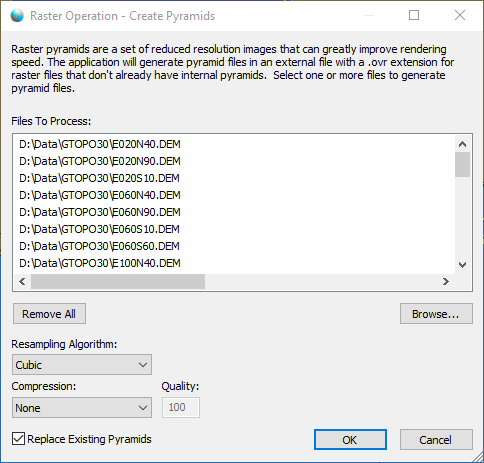
The dialog controls are:
- Files To Process
A list of one or more geospatial imagery files that the user wants to generate a pyramids for. - Remove All
When this button is clicked all the file paths are removed from the list. - Browse
When this button is clicked a file select dialog is displayed for the user to select one or more geospatial imagery files to be added to the list. - Resampling Algorithm
A drop down list box of possible resampling algorithms for the pyramiding process. Resampling is the process of resizing the image and how pixel color values are calculated when merging multiple source pixels into one output pixel. Nearest Neighbor is the fastest option and produces decent looking results while the other options are slower but produce better looking results. Cubic is recommended when processing elevation data because it preserves the original height values better than the other options. - Compression
A drop down list box of possible compression algorithms to use when creating the pyramids. Compression produces pyramids that can be much smaller than uncompressed pyramids but may be slower to render. Compressing files can result in data loss because in some cases pixel values may be changed during the compression and / or uncompress operations. - Quality
A numeric quality setting applicable only when using the jpeg compression codec. Valid range for the setting is 1 - 100 where 1 is the worse quality but fastest compression time and 100 is the best quality but slowest compression time. - Replace Existing Pyramids
Select this option if existing pyramid files with the same file names as the source images should be replaced. - OK
When this button is clicked the dialog queues the Create Pyramids task with the Parallel Processing Server and closes the dialog. Use the Task Pane window to monitor the task progress. A popup balloon window and the Task Pane will alert the user when the task is complete. - Cancel
Closes the dialog window.
Documentation is published by LCIC with the Axis release and imported here in full. Screenshots and wording are the vendor's own.