Add OGC Service Dialog
The map add ogc service dialog window allows the user to add a WMS or WMTS service layer to the Map View window.
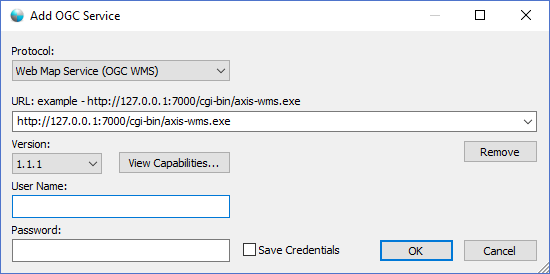
The dialog controls are:
- Protocol
A drop down list box that defines the OGC service protocol to use when connecting to the service defined in the URL drop down list box. - URL
The URL of the service the user wants to connect to. This url is typically pointing to a script on a server that will respond to a GetCapabilities request for the selected Protocol. The application will automatically add the required GET query string parameter to the end of the URL specified for a GetCapabilities request. Users can use the HTTP and HTTPS protocols to connect to OGC services. URLs that are successfully connected to will be saved in the URL drop down list box for future OGC service connections. - Remove
When this button is clicked the currently selected url in the URL drop down list box will be premanently removed. - Version
A drop down list of supported versions for a given Protocol. - View Capabilities
When this button is clicked the dialog will attempt to connect to the service specified in the URL text box and request the service capabilities XML document. When the service responds from the request the dialog will display the results in the Server Response window as an XML document. If the window fails to refresh it may be necessary to resize the Server Response window to see the results. - User Name
The User Name for the URL if required by the server. Some servers require additional authentication and is typically an NTLM user name. Your service provider should supply the additional credentials if required. For most servers this field is not required and is left blank. - Password
The Password for the URL if required by the server. Some servers require additional authentication and is typically an NTLM password. Your service provider should supply the additional credentials if required. For most servers this field is not required and is left blank. - Save Credentials
Select this option if you want the credentials specified in the User Name and Password fields to be saved with the connection URL for further application sessions. The credentials will be encrypted between sessions using AES 256 bit encryption. - OK
When this button is clicked the dialog will attempt to connect to the OGC service specified by the Protocol and URL fields. If the connection attempt is successful and the capabilities document can be parsed the dialog window will be closed and the OGC service will be added as a layer in the Document Pane Tree Control where it can be made visible for viewing in the Map view window. - Cancel
Closes the dialog window.
Documentation is published by LCIC with the Axis release and imported here in full. Screenshots and wording are the vendor's own.