Create Countour Lines Dialog
The raster operation create contour lines dialog window allows the user to convert one or more elevation imagery files to a shape file of contour interval lines.
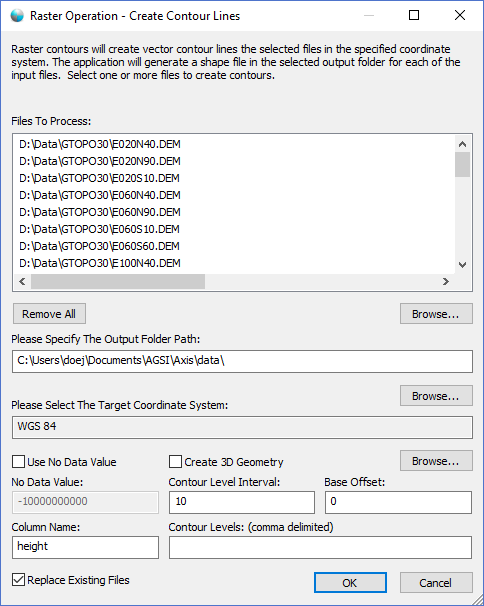
The dialog controls are:
- Files To Process
A list of one or more elevation imagery files that the user wants to convert into contour interval shape files. - Remove All
When this button is clicked all the file paths are removed from the list. - List - Browse
When this button is clicked a file select dialog is displayed for the user to select one or more elevation imagery files to be added to the list. - Please Specify The Output Folder Path
The directory path where the contour interval shape files should be created. A new shape file with the same name as the source image will be created in the output folder path. - Output Folder Path - Browse
When clicked a folder browse dialog window is displayed allowing the user to select the output folder path. - Please Select The Target Coordinate System
A read-only text box that displays the currently selected target coordinate system. Use the Browse button to change the selection. - Target Coordinate System - Browse
When clicked the Coordinate System Dialog window is displayed allowing the user to select the target coordinate system. - Use No Data Value
Select this option if you want to use the value in the "No Data Value" textbox to be treated as the no data (null pixel) value for the source images. If the source image(s) have a no data value already defined in file header this checkbox will be selected when the property page is displayed. Some providers deliver imagery where the no data value is not stored in the file header but rather in a metadata sidecar file. If the application is unable to identify the no data value the user can override the default value by using this option. If no "no data value" can't be discovered the checkbox will not be selected and it will be assumed that the file is completely opaque (no transparency). - No Data Value
When the "Use No Data Value" option is selected the no data value text box will be enabled and the user can enter a number value to override the null pixel value. If the source image(s) have a no data value already defined in file header this textbox will be enabled when the property page is displayed. Some providers deliver imagery where the no data value is not stored in the file header but rather in a metadata sidecar file. If the application is unable to identify the no data value the user can override the default value by using this option. If no "no data value" can't be discovered the textbox will be disabled and it will be assumed that the file is completely opaque (no transparency). - Create 3D Geometry
When this option is selected the process will produce 3D vectors instead of 2D vectors that use the elevation values from the source file(s) as the Z coordinate. - Contour Level Interval
A textbox that contains a numerical value specified in the units of the source file(s) projection that is the elevation interval between contours. - Base Offset
A textbox that contains a numerical value specified in the units of the source file(s) projection that is the elevation offset from zero relative to which to interpret intervals. - Column Name
A textbox that contains a name for the column in the shape file in which to put the elevation value. If left blank no elevation column is added to the contour interval shape file. - Contour Levels
A textbox that contains a comma seperated list of fixed numeric interval values specified in the units of the source file(s) projection to create in place of using the "Contour Level Interval" value. - Replace Existing Files
Select this option if existing files in the output folder path with the same file names as the source images should be replaced. - OK
When this button is clicked the dialog queues the Create Contour Lines task with the Parallel Processing Server and closes the dialog. Use the Task Pane window to monitor the task progress. A popup balloon window and the Task Pane will alert the user when the task is complete. - Cancel
Closes the dialog window.
Documentation is published by LCIC with the Axis release and imported here in full. Screenshots and wording are the vendor's own.