Cloud Directory Menu
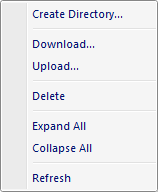
The popup menu items are:
- Create Directory
When this option is selected the Cloud Create Dialog window is displayed allowing the user to create a sub directory. -
Download
When this option is selected a Folder Browse Dialog window is displayed allowing the user to select a directory to download the contents. When a cloud directory is downloaded it will also download all sub directories. -
Upload
When this option is selected the Cloud Storage Upload Dialog window is displayed allowing the user to select one or more files and / or folders to upload to the selected cloud service directory. -
Delete
Deletes the selected cloud service directory. Sub directories and files must be deleted first and the directory must be empty before deletion can occur. -
Expand All
Expands all sub directories that have been previously expanded using the + icon next to the directory name in the cloud storage tree control. Use the plus icons in the cloud storage tree control to retrieve a folder contents before using this menu option. -
Collapse All
Collapses all sub directories that have been previously expanded using the + icon next to the directory name in the cloud storage tree control. Use the plus icons in the cloud storage tree control to retrieve a folder contents before using this menu option. -
Refresh
Refreshes the selected directory contents from the cloud storage service. Only root directory items will be displayed. Use the plus icon in the cloud storage tree control to expand sub directories.
Documentation is published by LCIC with the Axis release and imported here in full. Screenshots and wording are the vendor's own.