Symmetric Difference Dialog
The spatial operation symmetric difference dialog window allows the user to create geometries that represents the portions of geometry A and geometry B that do not intersect. You can think of this as the union of geometry A and geometry B minus the intersection of geometry A and geometry B. In other words, the symmetric difference is the area the two features don't have in common.
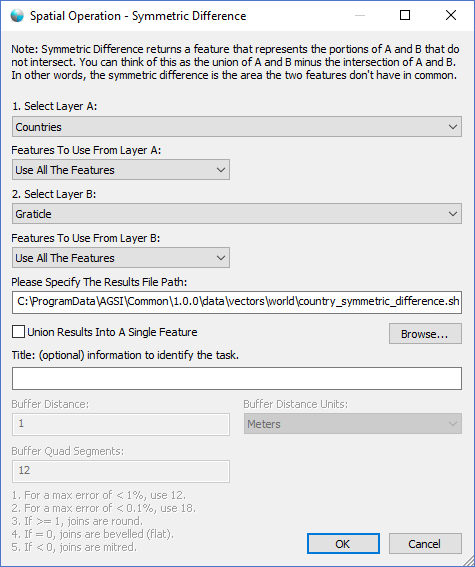
The dialog controls are:
- Select Layer A
A dropdown list box that contains a list of geometry datasets in the active Map View window. - Features To Use From Layer A
A dropdown list box that specifies what features in layer A to process. - Select Layer B
A dropdown list box that contains a list of geometry datasets in the active Map View window. - Features To Use From Layer B
A dropdown list box that specifies what features in layer B to process. - Please Specify The Results File Path
The file path that specifies the location of the output results file. - File Path - Browse
When this button is clicked a file save dialog is displayed for the user to select the file path and file name of the output results file. - Union Results Into A Single Feature
Select this option if you want the resulting geometries to combined into one single geometry. - Title
A text string that will be displayed in the Task Pane window to help uniquely identify the task. - OK
When this button is clicked the dialog queues the Symmetric Difference task with the Parallel Processing Server and closes the dialog. Use the Task Pane window to monitor the task progress. A popup balloon window and the Task Pane will alert the user when the task is complete. - Cancel
Closes the dialog window.
Documentation is published by LCIC with the Axis release and imported here in full. Screenshots and wording are the vendor's own.