Cloud Pane
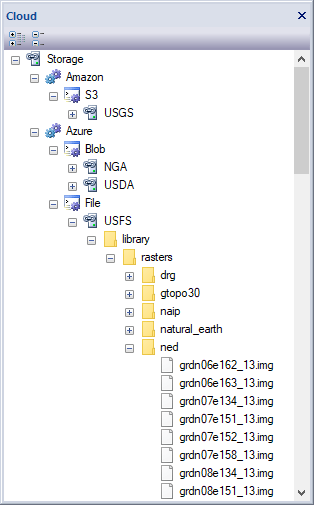
Overview
The cloud pane docking window allows users to connect to one or more cloud storage service accounts. Once connected to a service users can create directories, delete directories, upload files, download files and delete files. To connect to a service account, right click a service group node to display the Cloud Service Group Menu and select the "Add Account" option to display the Service Account Dialog window. Use the right click popup menus of directory and file nodes to create, remove, upload and download directories and files.
Cloud storage services can contain millions of files. Displaying millions of files in a tree control be slow and consume lots of system resources. To overcome these limitations the cloud storage tree control will only retrieve the contents of a directory when the directory tree node is initially expanded. Once a directory is loaded users can use the "Refresh" option in the right click menus to reload the contents of a directory. To find a specific file or group or files use the cloud Search Dialog .
Dialogs
Menus
Toolbar
- Expand All
Expands all sub nodes of the storage node.

- Collapse All
Collapses all sub nodes of the storage node.
Service Credentials
Use the Settings Dialog Cloud Page to save your service account logon credentials. Service accounts are saved between application settings.
Docking Window
Dockable panes are special windows that can either be docked in a dock site or included in a tabbed pane. The main difference with a view is that a view is built to display the main application content while a pane provides context relative content to what the view has. When a pane is docked in a tabbed pane, click and drag the tab title to rip it from the tabbed view. Drop the cursor on the docking targets that appear when dragging to dock in a new location. Use the "Pin" menu icon in the title bar of the pane window to auto show / hide the pane when not in use. Use the Main Menu, Map Menu or Panes Toolbar to show or hide the application docking windows.
Documentation is published by LCIC with the Axis release and imported here in full. Screenshots and wording are the vendor's own.