Search Pane
The search pane docking window allows users to geocode address and place information along with unit conversion operations such as decimal degree to DMS, UTM, or MGRS.
Overview
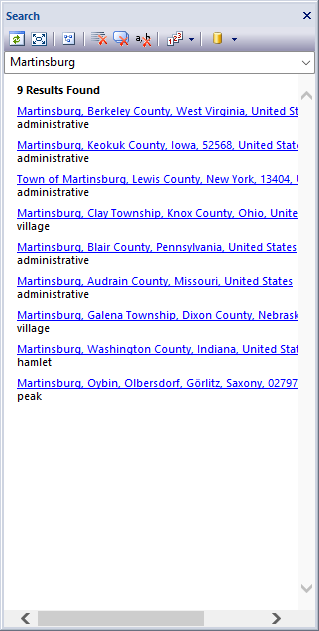
The search pane docking window allows users to search for map locations using freeform text and the OpenStreetMap Nominatim gazetteer service. Up to 50 result links at a time can be returned from the server. Results include geometry definitions so the user can zoom to a location and view the center point or perimeter of each result. The Nominatim servers can be local or remote and the URL endpoints are configurable from the toolbar in the Search Pane window. Search results are cached in the dropdown edit box from session to session and entries can be removed using the pane window toolbar. Use the Search Page of the Product Settings Dialog to modify the URL end point of the nominatim server.
Toolbar
- Execute Search
Refreshes the task list control to reflect any changes in the parallel processing server.
- Limit To View
Limits the search extent to the visible window bounds.
- Show Geometry
Displays the search result geometry on the map when the user clicks a search result hyperlink.
- Clear Search
Removes the search results links from the search pane window.
- Clear History
Removes the search criteria history from the droplist.
- Remove Item
Removes the currently active search criteria string from the search droplist.
- Search Limit
Sets the search results limit. Can be 1, 10, 25, or 50.
- Search Database
Allows the user to toggle between a local and remote search database.
Docking Window
Dockable panes are special windows that can either be docked in a dock site or included in a tabbed pane. The main difference with a view is that a view is built to display the main application content while a pane provides context relative content to what the view has. When a pane is docked in a tabbed pane, click and drag the tab title to rip it from the tabbed view. Drop the cursor on the docking targets that appear when dragging to dock in a new location. Use the "Pin" menu icon in the title bar of the pane window to auto show / hide the pane when not in use. Use the Main Menu, Map Menu or Panes Toolbar to show or hide the application docking windows.
Documentation is published by LCIC with the Axis release and imported here in full. Screenshots and wording are the vendor's own.