Overview
Spatial Library Server is a Windows Service that manages a library of catalogs that contain metadata about the geospatial files on your network. The Map Publisher Desktop Application submits catalog import tasks to the Parallel Processing Service to interrogate your network for geospatial data. Metadata is parsed from the files that are discovered and normalized into a spatial data structure that is optimized for visualization and data processing. Files are grouped and classified in a way that is logical and easy to use. Users can create personal libraries on their desktop computers and create shared libraries on server computers that eveyone can access. The Map Publisher Desktop application has a Library Docking Window that allows the user to create, visualize and manage the libraries contents locally or remotely. Once the Spatial Library Server is installed, configured and running you only need to use the Library Desktop application if you want to inspect the system logs.
Library Service
The Library Service is a Windows Service named" AGSI Axis Library Service <version> ". The Library Service is responsible for storing and querying the catalog metadata and delivering it to the Map Publisher Desktop applications for visualization and processing. To use the Library Service you first connect to it from Map Publisher Desktop and then import data into the library using the Library Docking Window catalog menu in Map Publisher Desktop. To read more about importing data and using it from Map Publisher Desktop please read below.
Windows Services are special applications that are allowed to run under a designated user account, have no user interface and can stay running when users are logged off of the computer.
Import Task Workflow
The diagram below illustrates how a library import task travels through the parallel processing system from Map Publisher Desktop to the Library Service in a distributed deployment. The same workflow occurs when all services are deployed on the same machine.
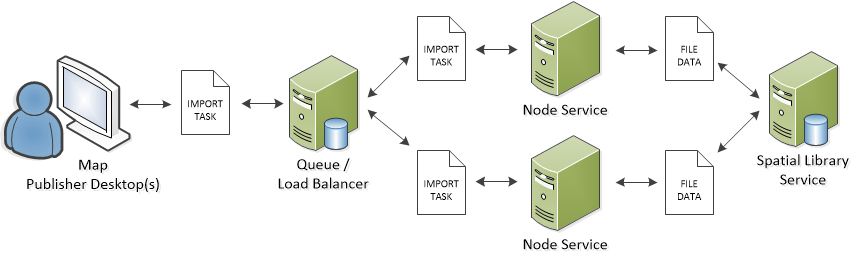
In the diagram above the life cycle of the library import task is:
- The library import task is created by the Map Publisher Desktop user. In this use-case scenario the import task is to import a National Elevation Dataset (NED) that covers the continental United States.
- The user submits the import task to the Parallel Processing Queue service.
- The Queue service receives the task request and distributes the tasks of interrogating the network files to the Worker Node Services.
- The Worker Node Services open the image files and strip metadata from the file headers and sidecar files.
- The metadata is packaged up and delivered to the Spatial Library Service.
- The Spatial Library Service normalizes the metadata in then stores it in the catalog dataset containers.
- When the import task has completed a notification is sent to the Map Publisher Desktop application and a balloon window is displayed to alert the user. The Task Docking Window in Map Publisher Desktop will also reflect the change in task status to completed. Using the Task Docking Window in Map Publisher Desktop the user can view the task details and log messages. To learn more about the Task Docking Window and creating tasks read the help documentation that is part of Map Publisher Desktop.
- The Map Publisher Desktop Library Docking Window automatically refreshes when the import task is complete to show the newly imported catalog datasets. The user can now visualize the data on the map or process the data with one of the many data processing utilities in Map Publisher Desktop.
Library Visualization
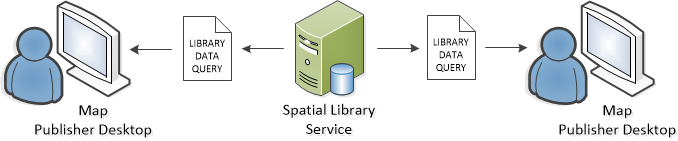
After data has been imported into the library, users can visualize footprints, metadata, geometry and / or pixels in the Map Publisher Desktop application. Users can select data for processing using one of several advanced selection tools. Data can be sorted by one or more attribute fields in the metadata. Catalog datasets can be styled and organized on a per user basis and default styles can be applied to shared libraries. The diagram below depicts multiple users accessing a shared Spatial Library Service.
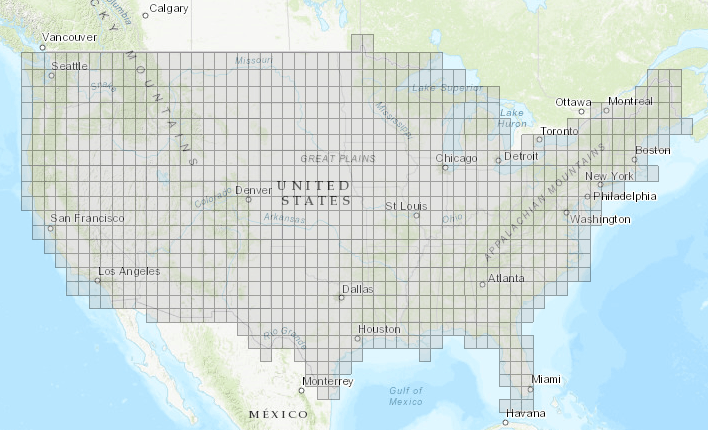
The screenshot below shows the results from importing the NED dataset as described above in Map Publisher Desktop:
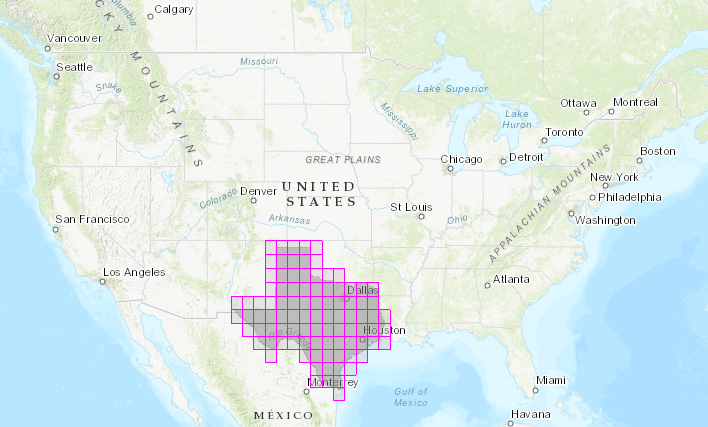
The next screenshot shows catalog items that have been selected for a mosaic operation using a shape file of Texas as a spatial filter:
To read more about working with libraries, catalogs and datasets and how to query, sort, select and process data in the library see the help guide for Map Publisher Desktop.
Documentation is published by LCIC with the Axis release and imported here in full. Screenshots and wording are the vendor's own.