Importing and Viewing Data
The Map Publisher Desktop application utilizes the Spatial Library Server for visualizing and processing geospatial data. Managing geospatial data using Windows Explorer can be really difficult because Windows Explorer has no capability for describing where the data is located. File and directory names can be useful for organizing the files but nothing beats just seeing the data on a map. Additionally, Windows Explorer only displays limited details about the files and has no capability for exposing coordinate systems, resolution, ground sample distance, geometry type, metadata and other important geospatial information. Map Publisher Desktop combined with Spatial Library Server provide a powerful yet simple to use interface that expose all the details contained in your geospatial files. Listed below are some possible things you can do with your data using Map Publisher Desktop and Spatial Library Server. For more information on using Spatial Library Server please refer to the help guide for Map Publisher Desktop.
Note: ROI stands for "Region Of Interest" which is a geometry that is created by the user on the map in Map Publisher Desktop using one of the ROI tools.
Management
- Use Multiple Libraries Simultaneously
- Create Catalogs
- Merge Catalogs
- Transfer Catalogs
- Edit Catalogs
- Delete Catalogs
- Scan Files And Folders For Geospatial Data Files
- Filter For Specific File Types When Importing
Visualization
- View Footprints on the Map
- View Pixels on the Map
- View Geometry on the Map
- Label Footprints
- Style Footprints
- Organize Footprints
- Select Footprints Using Rectangle Tool
- Select Footprints Using Feature Geometry
- Select Footprints Using Shape File Geometry
- Select Footprints Using Metadata Query
- Select Footprints Contained By ROI
- Select Footprints That Cross ROI
- Select Footprints Disjoint From ROI
- Select Footprints That Equal ROI
- Select Footprints That Intersect ROI
- Select Footprints That Overlap ROI
- Select Footprints That Touch ROI
- Select Footprints That Are Within ROI
- Select Footprints By Selecting Them From A List
- Zoom To Location of Footprints on the Map
- Turn On / Off Footprints in the Map
- Sort Footprints By Any Of The Metadata Fields In The List
- Filter and Search Footprints Using Metadata Attributes
- Export Footprints and Metadata To Shape Files
Raster Processing Tasks
- Batch Convert Coordinate System
- Batch Convert File Format
- Batch Convert Palette To RGB
- Batch Convert RGB To Palette
- Batch Create Contour Lines
- Batch Create Cutline
- Batch Create Histograms
- Batch Create Mosaic
- Batch Create Pyramids
- Batch Create Relief Map
- Batch Create Virtual Mosaic
- Batch Create Tiles From Files
Vector Processing Tasks
- Batch Convert Coordinate System
- Batch Convert File Format
Cloud Processing Tasks
- Batch Download
- Batch Upload
- Batch Delete
Displayed below is a screenshot of the Library Import dialog window in the Map Publisher Desktop application:
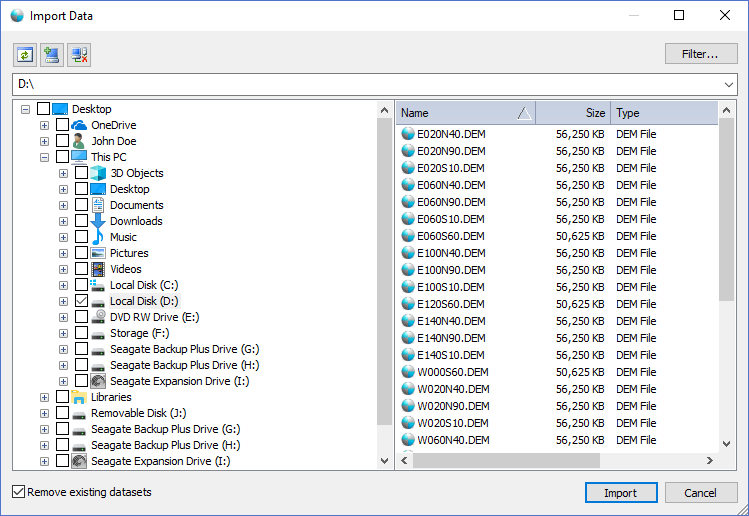
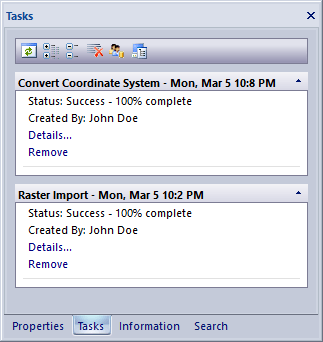
Access the dialog above by using the Map Publisher Desktop Library menu from the Library Docking Window toolbar. Check the drives and / or directories you want to interrogate in the tree control and click the "Import" button. The task will be transmitted to the Parallel Processing Server for execution. Use the Tasks Docking Window shown below to monitor the progress of the task.
When the task is completed use the Library Docking Window to view the results as shown below.
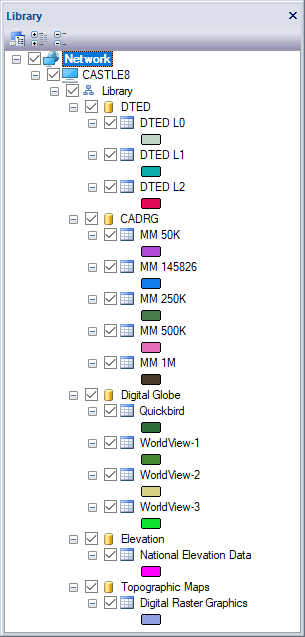
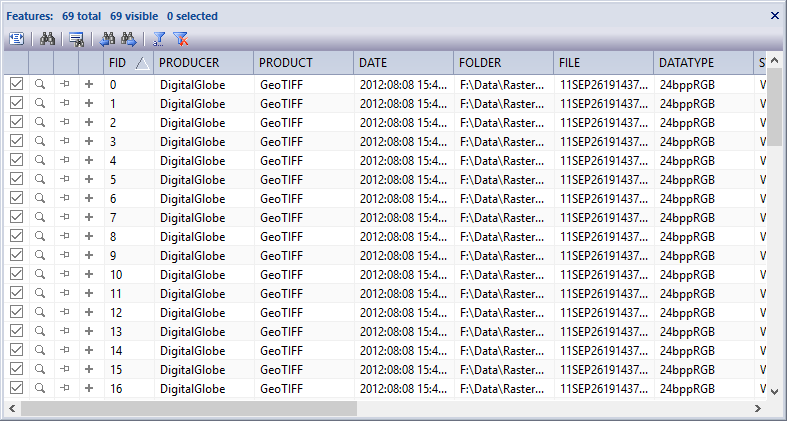
Select a Catalog Dataset in the library tree control shown above to display the Metadata Details as shown below.
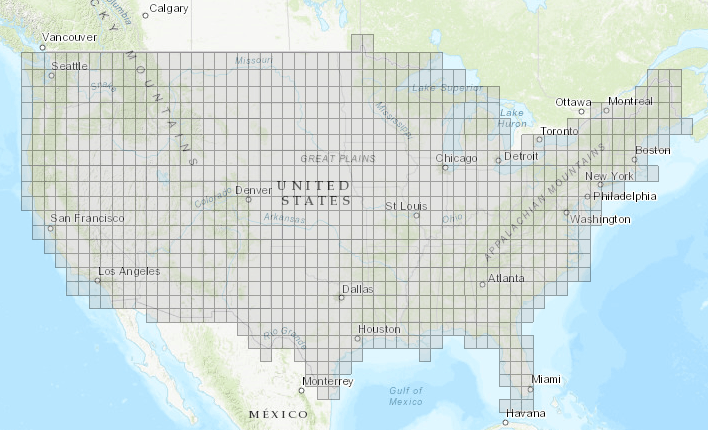
View the coverage footprints of the Catalog Datasets as shown below.
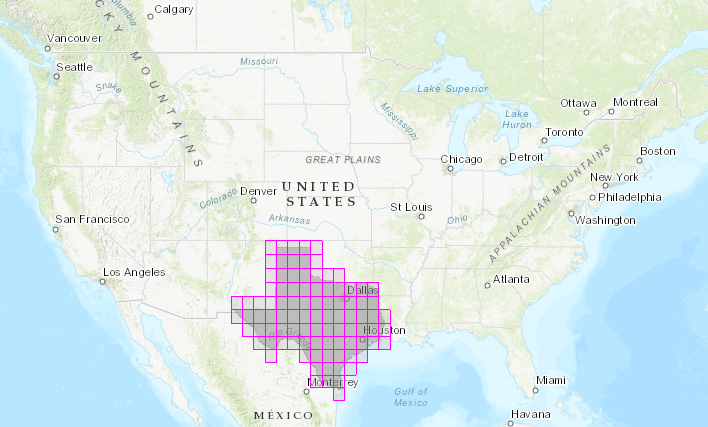
Use complex spatial operations to select the data you want to process. The screenshot below uses a shape file of Texas to select intersecting Dataset Features:
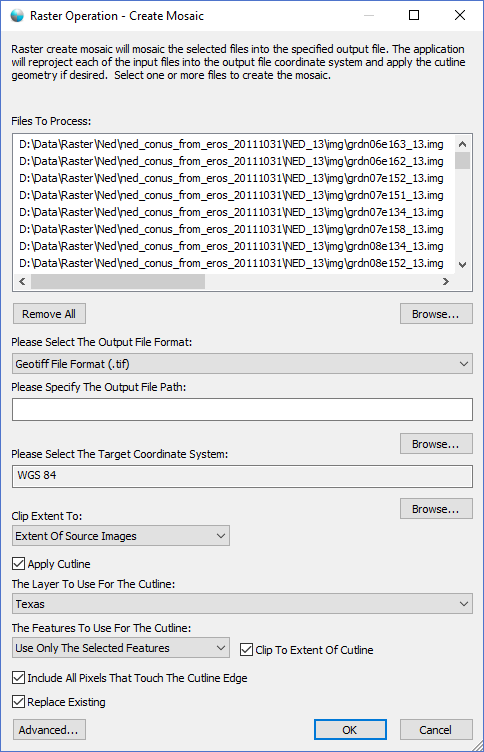
Right click the Catalog Dataset and select from one of many possible tasks from the popup menu. The screenshot below shows the dialog for submitting a mosaic task from the selected catalog datasets to the Parallel Processing Server:
For a more detailed explanation of all the library processing workflows supported by Map Publisher Desktop and how to import and manage libraries, catalogs and datasets, please see the help documentation for Map Publisher Desktop that is accesible via the Map Publisher Desktop application using the Help menu or F1.
Documentation is published by LCIC with the Axis release and imported here in full. Screenshots and wording are the vendor's own.