Overview
Parallel Processing Server is comprised of three Windows Services that work in concert to distribute tasks across multiple computers on your network in order to get tasks done faster. The Map Publisher Desktop Application submits tasks to the Queue Service for processing where the tasks are placed into a First In First Out (FIFO) queue. Tasks are processed in the order they are received and are made available to the Load Balancer Service for distribution to the Worker Node Services. Tasks are classified in a way that ensures the optimal use of hardware resources in order accelerate time to completion. The more Node Services that are deployed to different computers means more tasks you can process in parallel. The Map Publisher Desktop application has a Task Docking Window that allows the user to monitor and manage the tasks. Once the Parallel Processing Server is installed, configured and running you only need to use the Parallel Desktop application if you want to inspect the system logs.
Server Services
The three services are:
Windows Services are special applications that are allowed to run under a designated user account, have no user interface and can stay running when users are logged off of the computer.
Task Flow
The diagram below illustrates how tasks travel through the parallel processing system from Map Publisher Desktop to the Node Services and back.
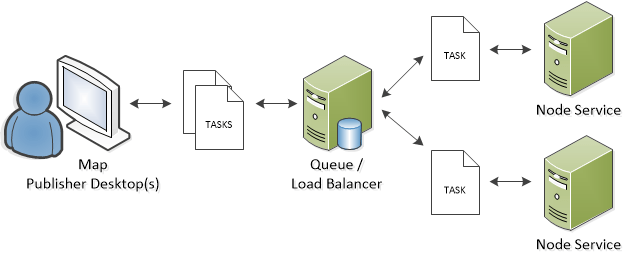
In the diagram above the life cycle of the task is:
- A task, such as creating pyramid files for an image, is create by the Map Publisher Desktop user.
- When the user submits the task, Map Publisher Desktop transimits a task request to the Queue service.
- The Queue service receives the task request, serializes it to disk and then notifies the Load Balancer that there is a new task request pending.
- When notified, Load Balancer picks up the task request and adds it to it's FIFO queue in the order it is received and waits for a Node service to request a task.
- When the Load Balancer service receives a task request from a Node service it passes it along and then either waits for the task to complete or distributes more tasks depending on the type of task it is. Read more about Task Types below.
- While a task is processing, log messages and percent complete notifications are relayed back to the Map Publisher Desktop from the Node services via the Queue and Load Balancer services.
- When the task has completed a notification is sent to the Map Publisher Desktop application and a balloon window is displayed to alert the user. The Task Docking Window in Map Publisher Desktop will also reflect the change in task status to completed. Using the Task Docking Window in Map Publisher Desktop the user can view the task details and log messages. To learn more about the Task Docking Window and creating tasks read the help documentation that is part of Map Publisher Desktop.
Task Types
Tasks are typed according to how many logical CPU cores they need to execute most efficiently. There are three task types and they are:
- Single Core Tasks
Tasks that require one logical core on a machine to execute efficiently. - Mutliple Core Tasks
Tasks that require all logical cores on a machine to execute efficiently. - Multiple Node Tasks
Tasks that require all logical cores on every machine that is a Worker Node machine to execute efficiently.
Example Use Case Scenarios:
An example of a single core task is creating a histogram for a single image. Because only one core is needed per image the user can queue many images at once and the Load Balancer service will ensure that every available core on every Worker Node machine is continually creating a histogram for each image until all images have been processed. The Task Dialogs in Map Publisher Desktop make it easy to queue many single core tasks at once making it simple for the user to process lots of tasks simultaneously.
An example of a multiple core task is extracting all the tiles from an OGC GeoPackage file and writing them to disk as png or jpeg files. It makes sense in this case to utilize all cores on a single Worker Node machine to extract the tiles since it's possible to be writing multiple files on a computer at the same time. It's also possible to distribute the process across all Worker Node machines as a multiple node task, but because the process happens so fast on a single machine it really doesn't buy you much. When a multiple core task is processed by a Worker Node computer it will utilize all logical cores on the machine until the task is completed before it requests a new task to process from the Load Balancer service.
An example of a muliple node task is uploading or downloading many image files to a cloud storage service such as Azure Blob Storage or Amazon S3. In this case you may have tens or hundreds of thousands of images that you want to store in the cloud or retrieve from the cloud. Because the process is limited by network bandwidth distributing the work across all the Worker Node computers make sense so that you can ensure you are maximizing your network throughput. When a multiple node task is received by the Load Balancer Service the task temporarily takes over the Load Balancer service job of distributing tasks to the Worker Node Computers until the multiple node task is complete.
Task Status
Task status describes the state of the task as it moves through the parallel processing life cycle. The six task status state values are:
- Pending
The task has been submitted to the Queue service but has not yet been queued for the Load Balancer service. - Queued
The task has been queued with the Load Balancer service and is waiting to be processed by a Worker Node computer. - Processing
The task has been delivered to a Worker Node computer and is currently being processed. - Success
The task has completed succesfully. - Failed
The task has failed to complete successfully. - Cancelled
The task was cancelled prematurely by the user.
Use the Task Docking Window in Map Publisher Desktop to inspect the status of tasks as they are they are moving through the parallel processing life cycle.
Task Messages
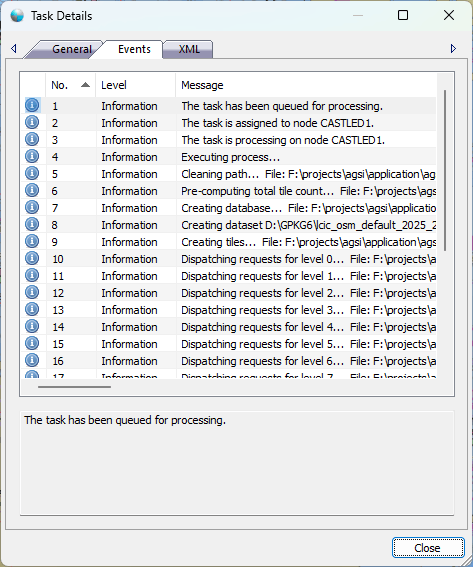
Task messages are informative messages that are accumulated as a task moves through the parallel proccesing life cycle. The log messages are intended to supplement the task percent complete information so the user can observe what happened to the task while it was processing. Task messages can be viewed using the Task Docking Window in Map Publisher Desktop. See the screenshot below to see the task details dialog window that is accessible from the Task Docking Window for eah task in the task list.
Task Details
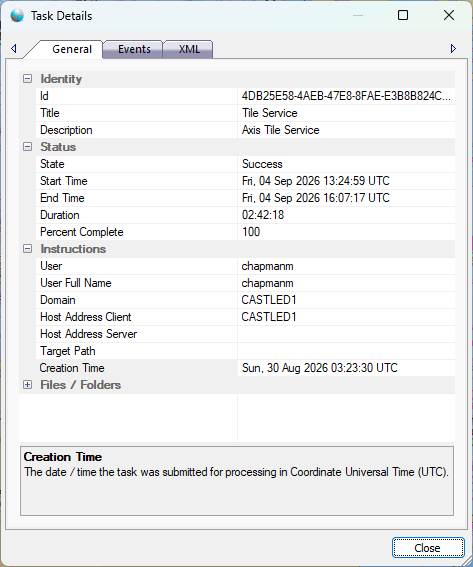
Task details can also be viewed using the Task Details Dialog shown below
Task XML
Task document raw XML can also be viewed using the Task XML Dialog shown below.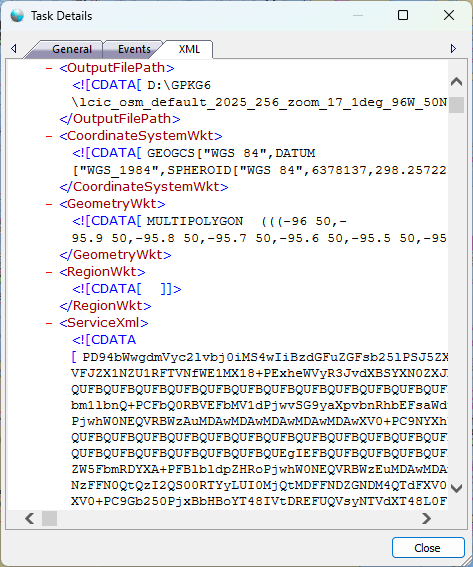
Documentation is published by LCIC with the Axis release and imported here in full. Screenshots and wording are the vendor's own.