Deploy on Two Computers
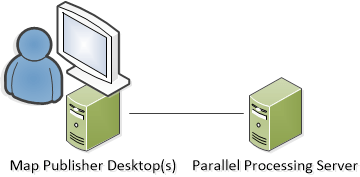
Deploying Parallel Processing Server on two computers assumes you want to run Map Publisher Desktop on one or more machines and the Parallel Processing Server on a single machine. This is a good strategy if you don't have a lot of hardware resources but don't want the Parallel Processing tasks to compete for CPU and Disk IO on your client workstation(s) while processing tasks. Multiple Map Publisher Desktop computers can also share one Parallel Processing Server computer.
Download the installer package (MSI) for Map Publisher Professional from https://lcic.xyz/ if you don;t already have it. The installer package for 64 bit computers it is named axis-pro-map-publisher-100-x64.msi .
Parallel Processing Server Computer Installation
Step 1
Run the installer package and select the "Server" option in the "Setup Type " wizard page as shown below. This option selects the most commonly used application components for server computer use.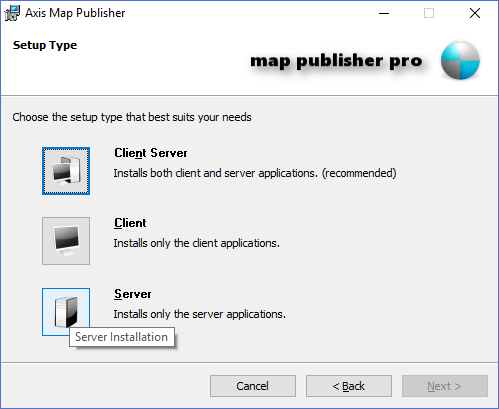
Step 2
On the " Feature Selection " page unselect the " Spatial Library Server" and " Enterprise Map Server " options as shown below.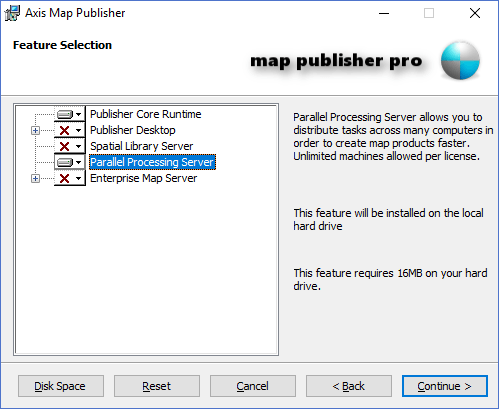
Step 3
Finish the installation.
Map Publisher Desktop Computer Installation
Step 1
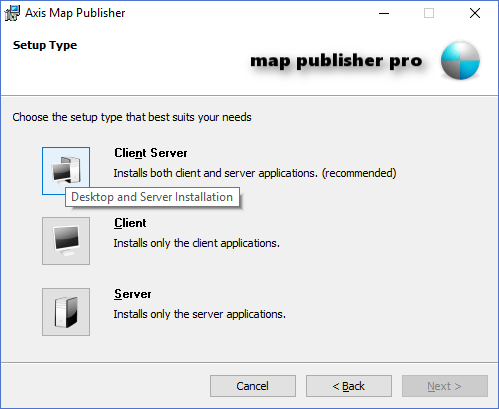
Run the installer package and select the "Client Server" option in the "Setup Type " wizard page as shown below. This option selects the most commonly used application components for single computer use.
Step 2
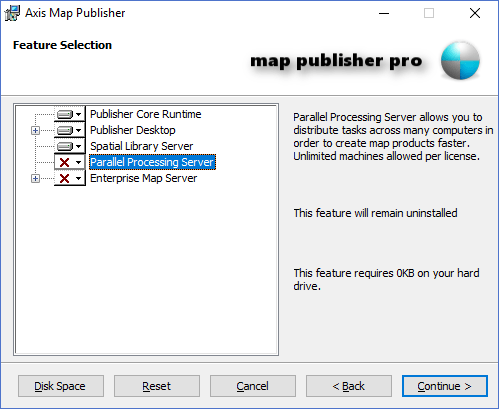
On the "Feature Selection" page unselect the "Parallel Processing Server " option as shown below.
Step 3
Finish the installation.
Step 4
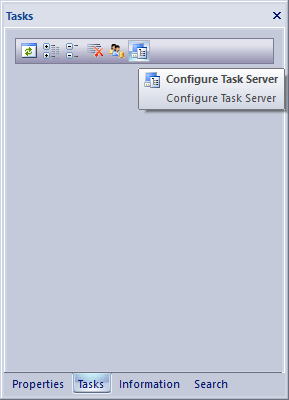
Run the Map Publisher Desktop application that was just installed in the last step and click the "Configure Task Server " toolbar button in the Tasks Docking Window to display the Task Server Dialog as shown below.
Step 5
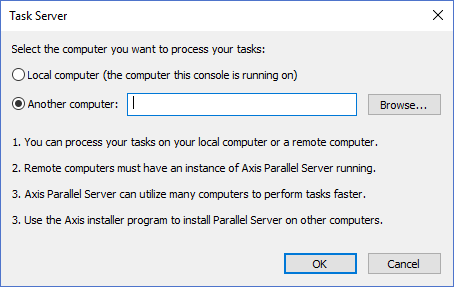
In the Task Server Dialog window select the "Another computer" radio button and then use the "Browse" button or type in the text box the name of the computer where you installed Parallel Processing Server and then click the "OK " button. The Task Server dialog will attempt to connect to the Parallel Processing Server on the machine specified. If the dialog fails to connect to the remote server, go to the remote computer and validate that the Parallel Processing Server installation succeeded and that all the services are running.
If the connection succeeded you are ready to start creating tasks with Map Publisher Desktop. For more information on how to submit tasks using Map Publisher Desktop please see Submitting Tasks .
Documentation is published by LCIC with the Axis release and imported here in full. Screenshots and wording are the vendor's own.