Submitting Tasks
The Map Publisher Desktop application has many capabilities for processing geospatial data. Many of those tasks are long running operations that would prevent the user from using the GUI until the tasks are completed if they were part of the GUI. Parallel Processing Server works as a surrogate to offload long running tasks so the GUI application can still do work for the user. Tasks are generated by using one or more of the dialogs that are located in the Map Publisher Desktop application. Tasks are queued with the server in the order they are received and the server communicates back and forth with the GUI to inform the user of task progress. Listed below are some possible tasks you can create from Map Publisher Desktop. For more information on submitting tasks please refer to the help guide for Map Publisher Desktop.
Raster Tasks
- Convert Coordinate System
- Convert File Format
- Convert Palette To RGB
- Convert RGB To Palette
- Create Contour Lines
- Create Cutline
- Create Histograms
- Create Mask
- Create Mosaic
- Create Pyramids
- Create Relief Map
- Create Virtual Mosaic
- Create Tiles From Files
- Create Tiles From GeoPackage
- Create Tiles From MBTiles
- Create Tiles From WMS
- Create Tiles From WMTS
- Create Tiles From XYZ
Vector Tasks
- Contains
- Crosses
- Disjoint
- Equals
- Intersects
- Overlaps
- Touches
- Within
- Buffer Distance
- Convex Hull
- Difference
- Envelope
- Intersection
- Symmetric Difference
- Union
Cloud Tasks
- Download
- Upload
- Delete
Library Tasks
- Import
Listed below is a screenshot of one of the task dialogs listed above that resides in the Map Publisher Desktop application:
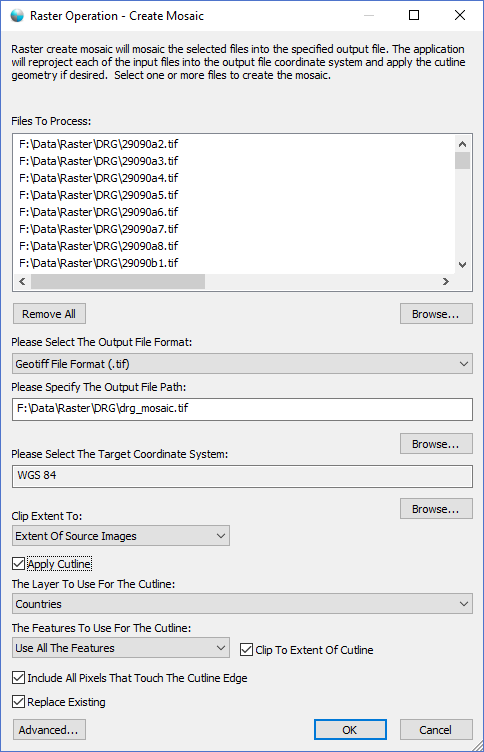
Access the dialog above by using the Map Publisher Desktop Raster menu or the Raster toolbar. Fill in the required information and click the OK button. The task will be transmitted to the Parallel Processing Server for execution. Use the Tasks Docking Window shown below to monitor the progress of the task.
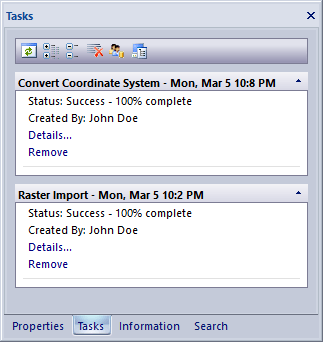
Click the "Details..." link in the task panel shown above to display the Task Details dialog window as shown below.
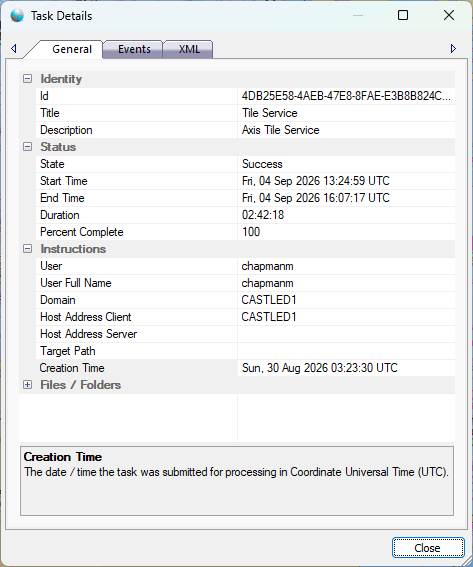
Click the "Event" tab in the Task Dialog window as shown above to view the task log messages as shown below.
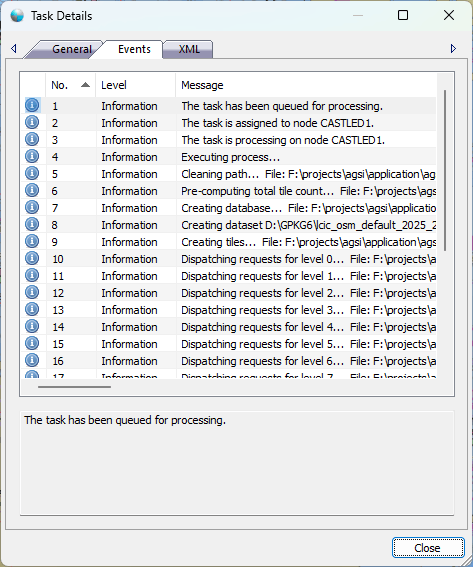
When the job is complete the task status will reflect the change in status and a balloon window will briefly appear as shown below.

For a more detailed explanation of all the parallel processing workflows supported by Map Publisher Desktop and how to monitor and manage tasks, please see the help documentation for Map Publisher Desktop that is accesible via the Map Publisher Desktop application using the Help menu or F1.
Documentation is published by LCIC with the Axis release and imported here in full. Screenshots and wording are the vendor's own.