Overview
Parallel Processing Desktop is a management application that allows you to control and manage the Parallel Processing Server application. The application is a simple GUI application that is installed with every instance of Parallel Processing Server. You can access it from one of the links that were installed on your desktop, start menu or from the Program Files folder. Administrative privileges are required for some of the functions in the application. See Desktop Restrictions below to read more about the restrictions. Use the Desktop application to stop, start, configure services properties and review event log entries. Visit the Desktop Control links below for more information.
Desktop Window
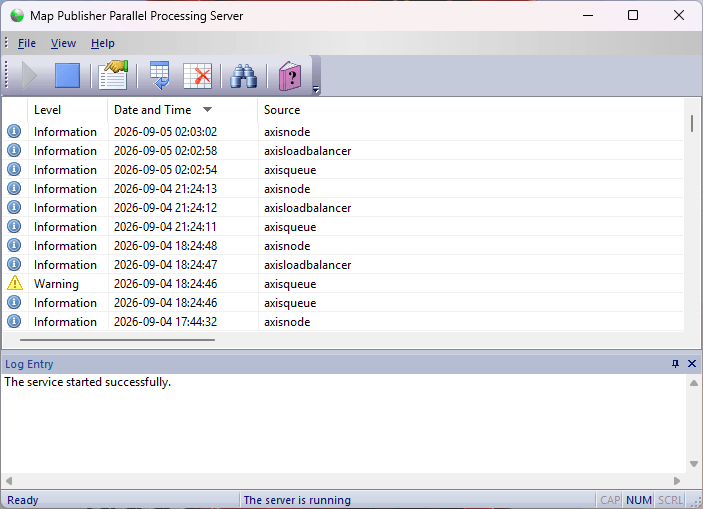
The screenshot below shows the Parallel Desktop Application Window:
Desktop Controls
The application controls are:
- Menu
- Toolbar
- Log Entry List
- Log Entry Docking Window
- Properties Dialog
- Find Dialog
- About Dialog
- Status Bar
Desktop Restrictions
Administrative privileges are required for some of the functions in the application because the Microsoft Windows API requires administrative privileges when starting, stopping and configuring Windows Services. To read more about this restriction please visit the Microsoft website . Despite this restriction, the application will still run for a normal user if the user declines to elevate the application privileges on startup of the application. This can be useful if the user wants to inspect and / or export the log entries. If the application is started without administrative privileges the message box displayed below will appear:
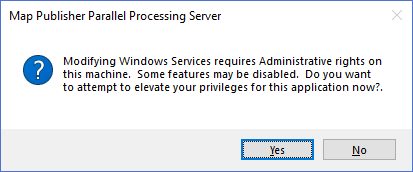
Chossing "Yes" will attempt to elevate the user privileges to Administrative. Choosing "No" will launch the application with a reduced set of functionality. If a user is already in the Administrators group then the message box will not appear. The behaviour described above can vary depending on the settings of Windows User Account Control (UAC).
Documentation is published by LCIC with the Axis release and imported here in full. Screenshots and wording are the vendor's own.