Properties Dialog
The desktop properties dialog window allows you to configure the behaviour of the Parallel Server Windows Services.
Desktop Properties Dialog
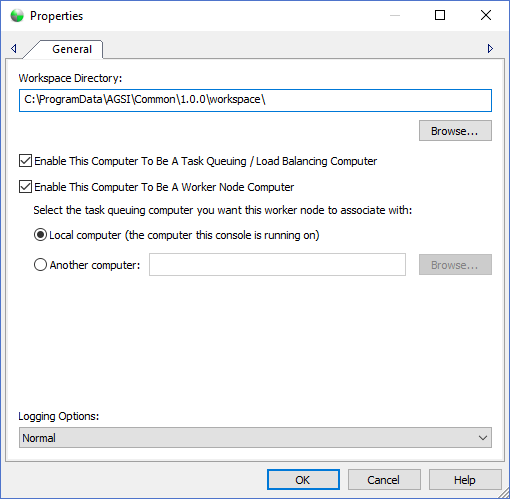
The dialog controls are:
- Workspace Directory
Specifies the root directory path where the Parallel Processing Window Services can create temporary directories and files while processing tasks. The Windows Service logon credentials must have sufficient access rights to the root Workspace Directory for creating, reading, writing and deleting directories and files. Use the Windows Services application from the Adminstration Tools in the Control Panel to set the logon credentials for all the services that start with AGSI. - Workspace Directory Browse
Launches a directory browse window to select the Workspace Directory path. - Enable This Computer to Be A Task Queuing / Load Balancing Computer
Check this option if you want this computer to accept tasks from Map Publisher Professional Desktop applications for processing. A Task Queuing / Load Balancing Computer is a computer that queues tasks for processing and load balances the tasks to the Worker Node Computers. In a distributed deployment of Parallel Processing Server you should typically select this option on only one computer and designate the other computers to be Worker Node Computers that associate with the Task Queuing Computer. In a single workstation deployment all services should be enabled. By selecting or deselecting the option the Queuing and Load Balancing Services will both be enabled or disabled accordingly. - Enable This Computer to Be A Worker Node Computer
Check this option if you want this computer to request tasks from Task Queueing / Load Balancing Computer. A Worker Node Computer is a computer that requests tasks for processing from the Task Queuing / Load Balancing Computer. In a distributed deployment of Parallel Processing Server you should typically select this option for all computers other than the Task Queueing / Load Balancing Computer and associate the Worker Node Computer to the Task Queueing / Load Balancing Computer using the "Another Computer" text box listed below. - Local Computer
Check this option in a single computer deployment when the Task Queuing / Load Balancing Services are also enabled. - Another Computer
Check this option in a distributed computer deployment when the Task Queuing / Load Balancing Services are disabled and running on another computer. Specify the computer name of the Task Queuing / Load Balancing Computer that this computer should request tasks for processing from. It is recommended that you first install and start the Task Queuing / Load Balancing Services before installing and configuring Worker Node Computers in a distributed environment because the Worker Node Computer will try and contact the remote computer on startup. - Another Computer Browse
Launches a network browse window to select the Task Queueing / Load Balancing Computer name. Beware that on networks that contain many computers this dialog window can be quite slow. It is recommended that you type the name in the text box manually if your network is large or is slow. - Logging Options
The logging option influences how the Parallel Processing Server Window Services log their processing steps. The three possible logging options are Normal, Trafiic and Debug. Normal is recommended when the system is running under normal circumstances and the log entries will be limited with only high level information such as stop, start, warning and error messages. Traffic is much more verbose and will log events in more detail and should only be used when you want to get a picture of what is going on with your system but should be set back to Normal to avoid cluttering the log with useless information messages. Debug is the most verbose logging option and should be used to trouble shoot configuration and system problems.
Documentation is published by LCIC with the Axis release and imported here in full. Screenshots and wording are the vendor's own.